
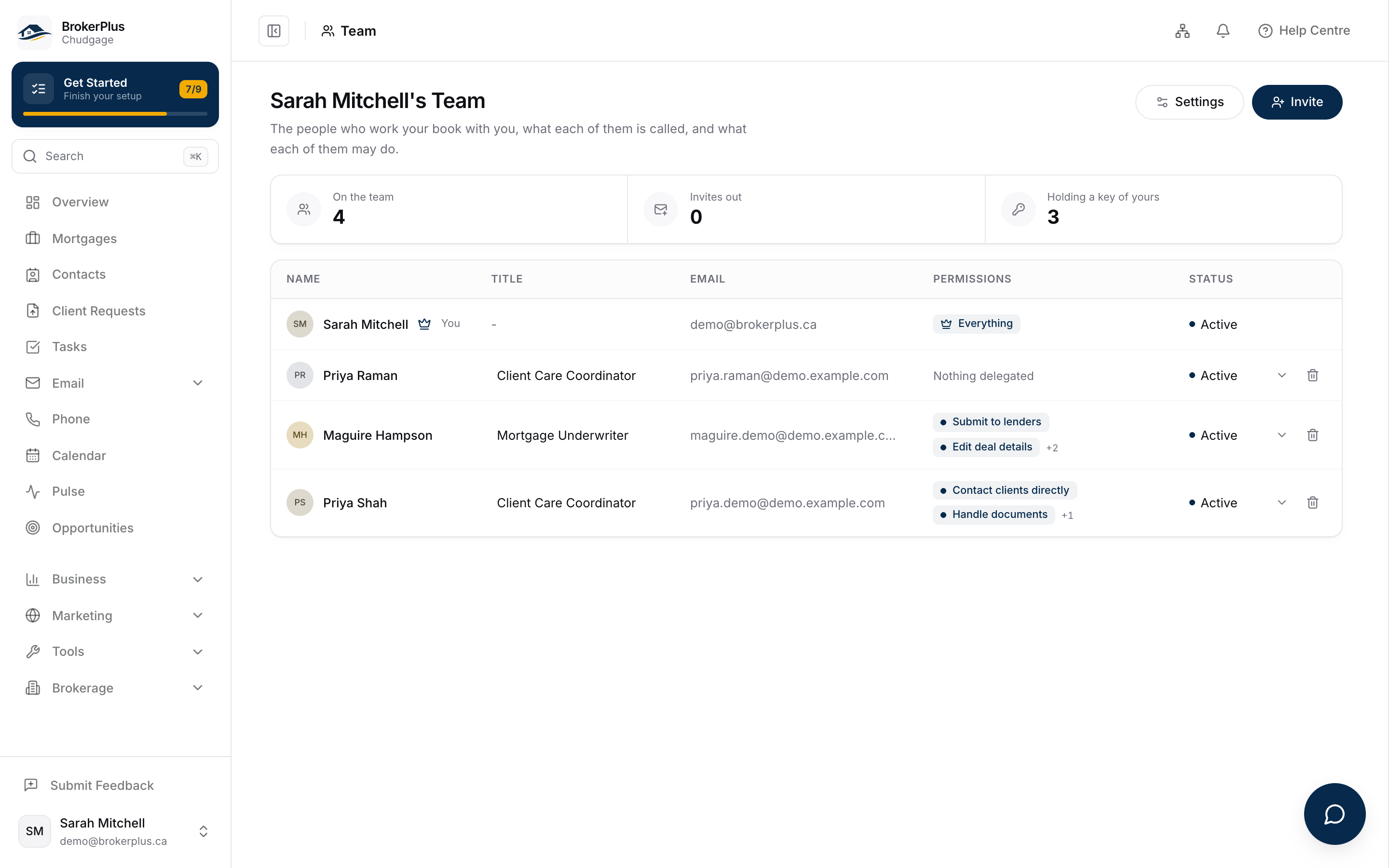
Everyone on your team has a row on the roster at Team, and that row is where you change what they do. Click it open to edit their title, what they handle day to day, and their permissions, all in one place.
When You'd Use This
Reach for this whenever a teammate's job changes: they're taking on lender submissions, you want them handling client documents, or you're pulling back a permission you handed out too freely. It's also where you go to remove someone from the team, or where they go to leave one themselves.
Opening a Teammate's Row
Click anywhere on a teammate's row and it expands into an editor beneath it. You can only open rows you're allowed to edit: the team's broker can open anyone, a delegate with Manage the team can open anyone except the broker and themselves, and everyone else sees a read-only roster.
Title and What They Handle
Two fields describe who this person is on your team. Title is a short label like "Senior Underwriter," up to 120 characters, and optional. What They Handle is a longer description of their day-to-day role, and must land between 20 and 1,500 characters. The assistant reads this text to route work to the right person, so a vague one-liner routes about as well as no description.
Adding and Removing Permissions
The permission picker sorts twelve permissions into three groups: Your clients (reading the team inbox, contacting clients directly, taking licensed work, handling documents, running compliance checks), Your deals (editing deal details, clearing conditions, submitting to lenders), and Your business (seeing commission, seeing business analytics, managing the team, managing automations).
Toggle any permission on or off and save. A few don't just dim a feature when off, they remove it outright: without See commission a deal has no Commission tab, and without See business analytics there's no Business section to open.
Why a Change Can Be Refused
BrokerPlus checks every change against four rules, and tells you which one stopped you:
- You're editing your own row. Nobody can change their own permissions, including a delegate with Manage the team - ask the team's broker instead.
- You're editing the team's broker. The broker holds every permission, and that row can't be edited. Transferring the team is how ownership changes, not re-permissioning the row.
- You're handing out more than you hold. A delegate can only grant permissions they hold themselves. If someone already has a permission above your own ceiling, editing the rest of their row still works; that one permission shows locked, so you can see they hold it without touching it.
- You don't manage this team. You need Manage the team to open anyone else's row.
Removing Someone, or Leaving a Team
Removing a teammate takes them off the roster and follows the same rule as editing them: you need Manage the team, and still can't remove the team's broker. Leaving is the one exception. Anyone can remove themselves from a team anytime, even though they can't touch their own permissions while on it.
What to Do Next
- Understand Roles and Permissions to see how a teammate's brokerage access level and their team permissions fit together.
- Invite Your Team to bring someone new onto the roster in the first place.
- Set Up the Daily Team Brief to decide whether this person gets a morning brief, and at what hour.