
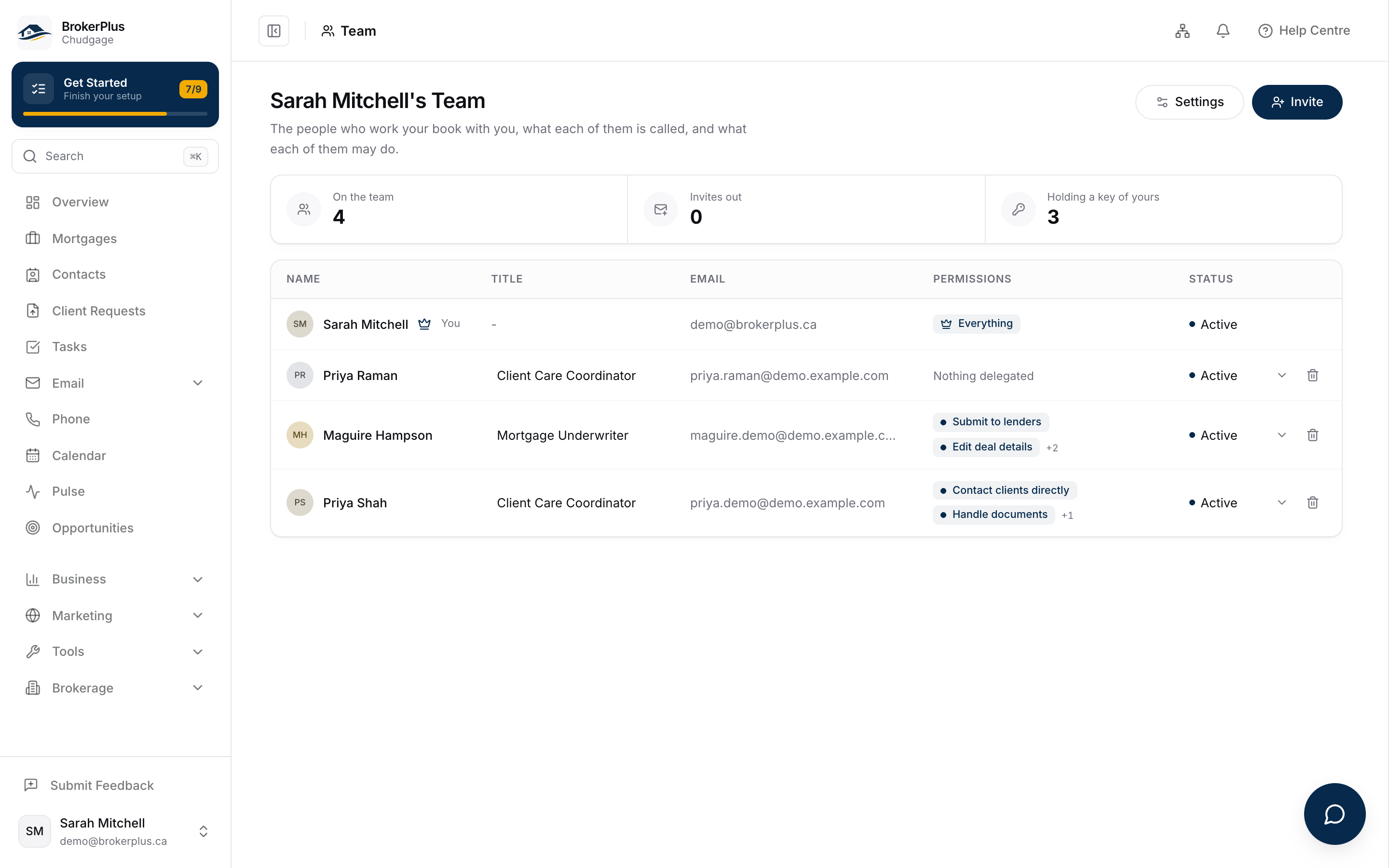
Whoever runs your crew, the team's broker or a delegate holding Manage the team, can bring someone new onto BrokerPlus from the Team page. Send an invite to their email, choose exactly what they can do from the same twelve permissions covered in Understand Roles and Permissions, and the link stays open for seven days until they accept it.
Watch Mandric walk you through this topic
2:36When You'd Use This
Use this whenever you're bringing someone onto your book: an assistant to chase paperwork, fulfillment help to clear conditions, an underwriter or licensed associate who can carry a file on their own, or a compliance reviewer. If you've given a teammate the Manage the team permission, they see the same Invite button you do and can bring people on without looping you in first.
Sending An Invitation
- Open Team and press Invite. The button only appears if you're the team's broker or hold Manage the team yourself.
- Enter the person's email address.
- Choose what they can do: start from a preset, copy a teammate's exact permissions, or tune the toggles one by one.
- Press Send Invite. The link is good for seven days from the moment you send it.
Starting From A Preset Or A Teammate
The permissions step opens on six starting points: Assistant, Fulfillment, Underwriter, Compliance officer, Sales, and Licensed associate, each a bundle built for a common kind of hire. Pick one, then press Adjust these permissions to fine-tune it, or Choose permissions one by one to skip presets and build the set yourself across three groups: Your clients, Your deals, and Your business.
You can also copy a teammate's permissions directly. Choose Copy permissions from, pick someone off your roster, and their exact set fills the invite. It copies only the grants, not their title or a link back to them, so changing their permissions later never moves this invite.
Either way, you can't hand out more than you hold yourself. The team's broker can grant any of the twelve permissions; a delegate only sees presets and teammates that fit inside their own permissions, and a permission above their own ceiling appears locked rather than simply missing.
Invitations Still Out
Every pending invite sits on the Team page until someone accepts it, showing what it grants and when it expires. From there you can:
- Resend it, which mails the same link again on a fresh seven-day deadline. This works whether the message never arrived or already expired; an expired invite doesn't disappear, it just waits for you to send it again.
- Withdraw it, the only way to take one back if you mistype an address or change your mind.
Common Gotchas
Sending an invite doesn't create an account. The person still has to open the link, set a password, and accept before they show up on your roster.
A blank invite starts with zero permissions selected. If you press Send Invite before picking a preset or a teammate to copy, the person can sign in but reach nothing until you go back and adjust their permissions.
If you're a delegate and don't see a teammate in the copy-from list, it's because their permissions exceed your own; BrokerPlus won't offer a copy that would hand out more than you hold.
What to Do Next
- Understand Roles and Permissions to see what each of the twelve permissions actually unlocks.
- Change What a Teammate Can Do once they've accepted, to adjust what they hold.
- Manage Agents in Your Brokerage if you're setting up brokerage-level access rather than a team invite.