
Brokerage > Teams is where the brokerage brings a broker on, sets their account-level access, and switches them off when they leave. Everything a broker's own team decides - who staffs it and what they may do - stays on the broker's own page, not here.
Opening the Brokerage Roster
The page is two cards. Brokerage lists everyone who sits on no team by design: admins, compliance reviewers and view-only users. Teams lists every broker's team, each collapsed until you open it. Search filters both by a person's name or a team's name, and matching a team keeps the whole team together rather than picking out one row.
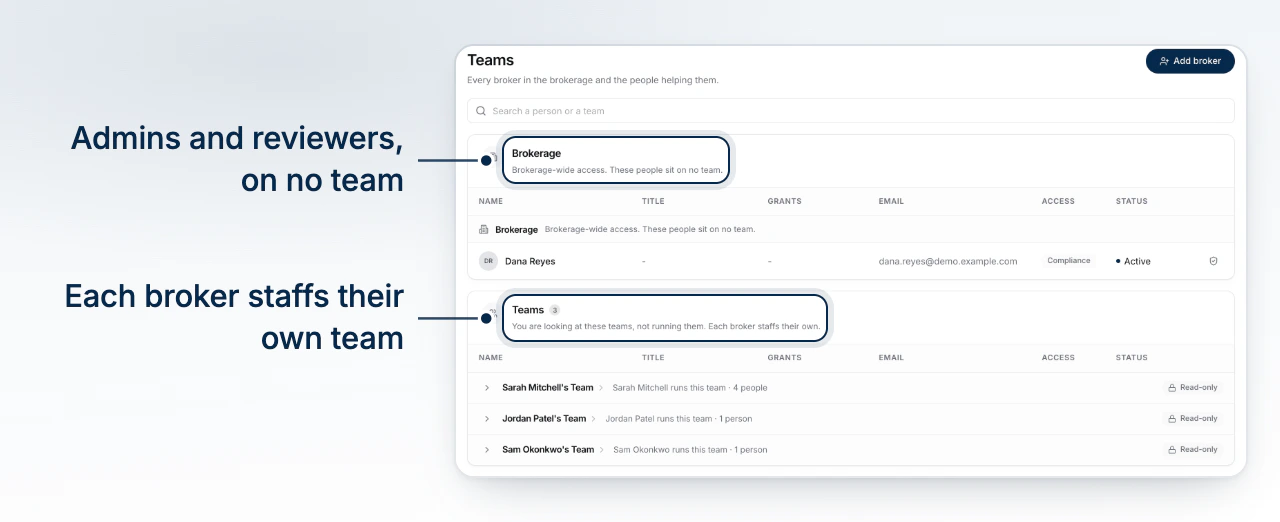
Adding a Broker
Select Add broker and enter their email. This sends an invite, and nothing more: it cannot name a team or set anyone's permissions. They join the brokerage and run their own book, and a team is made for them the moment they accept - there is no separate step where you staff it for them. How Teams Work in Your Brokerage covers what happens from there.
Setting Someone's Brokerage Access
Open the shield icon on any row for Brokerage Access: an account-level dialog, not a team one. It sets the access level (Admin, Member, Compliance, View only), a licence expiry date, and whether the account is active. It does not touch a seat on a team - who joins that team and what they may do is set by its own broker. Understand Roles and Permissions explains how the two layers split.
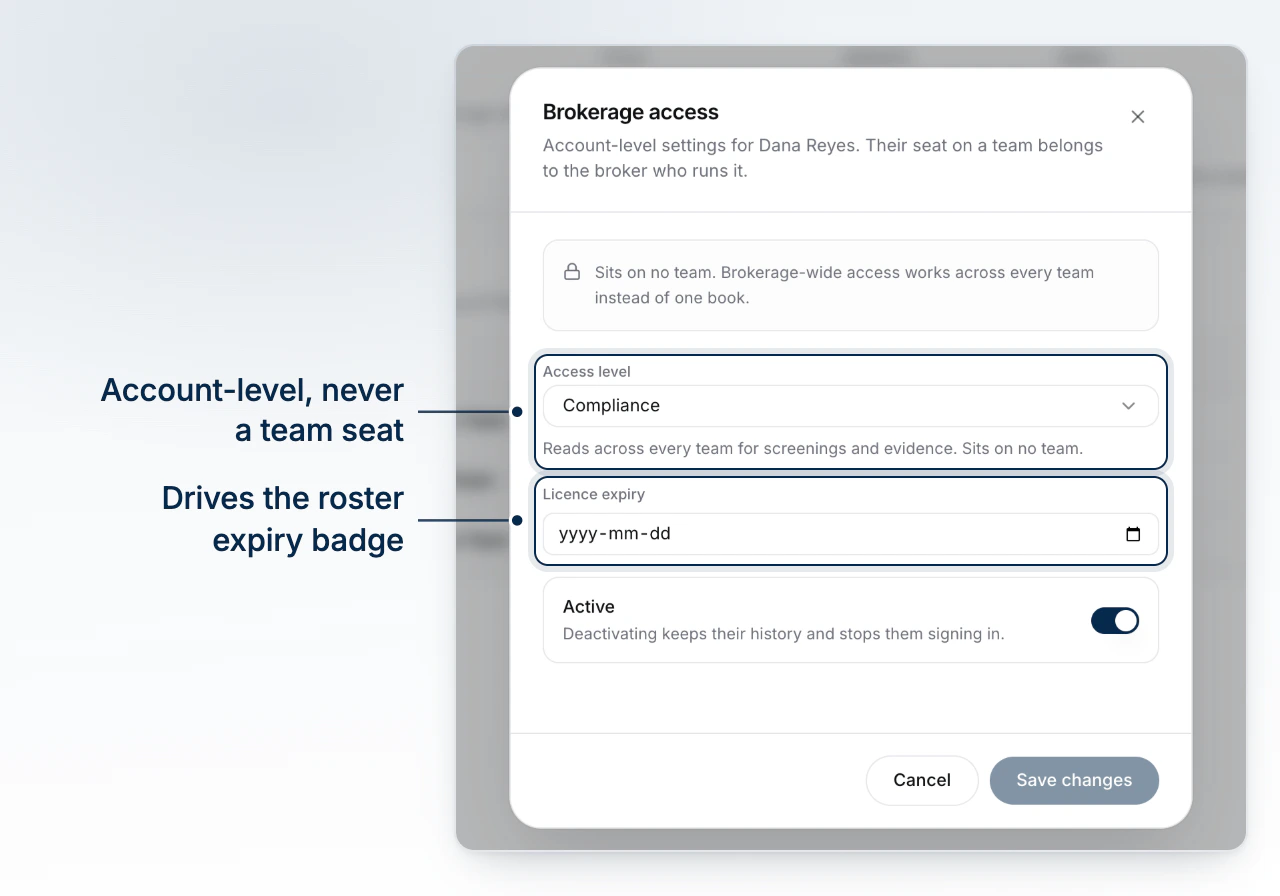
Licence Expiry Warnings
A licence expiry you've set surfaces on the roster as soon as it's within 90 days: an amber badge counting the days left, turning red inside 60 days, and reading Expired once the date has passed. No expiry set shows no badge at all.
Switching Off an Account
The Active switch is a hard stop, not a soft one. Turning it off signs the person out immediately - every session they're holding is revoked, so a browser tab left open stops working on the next request. Their email address is freed for reuse the moment you save, which cannot be undone: it is how a replacement hire gets invited at the same address. Their deals and history are untouched by the switch itself; reassign their book to another broker separately if the team still needs it actively worked. You cannot deactivate yourself, and you cannot deactivate the brokerage's last admin.
Invitations You Cannot Revoke
Pending invites appear below the roster, showing where each will land once accepted. Only an invite with no team attached - one you sent from this page - carries a Revoke button. An invite naming a team was sent by that team's own broker from their Team page, and the roster marks it their broker's to revoke: the brokerage can see it, but cannot pull it back.
What to Do Next
- How Teams Work in Your Brokerage for what a team is and who staffs it.
- Understand Roles and Permissions for the seat someone holds on their own team.
- Read a Broker's Scorecard to open one broker's production, pipeline and compliance posture.