
An automation hung off a board stage only fires when a deal moves into that stage. Rather than move a real client's file to see what happens, put a test deal on the board and move that one instead.
Watch Mandric walk you through this topic
8:43Generate the Test Deal
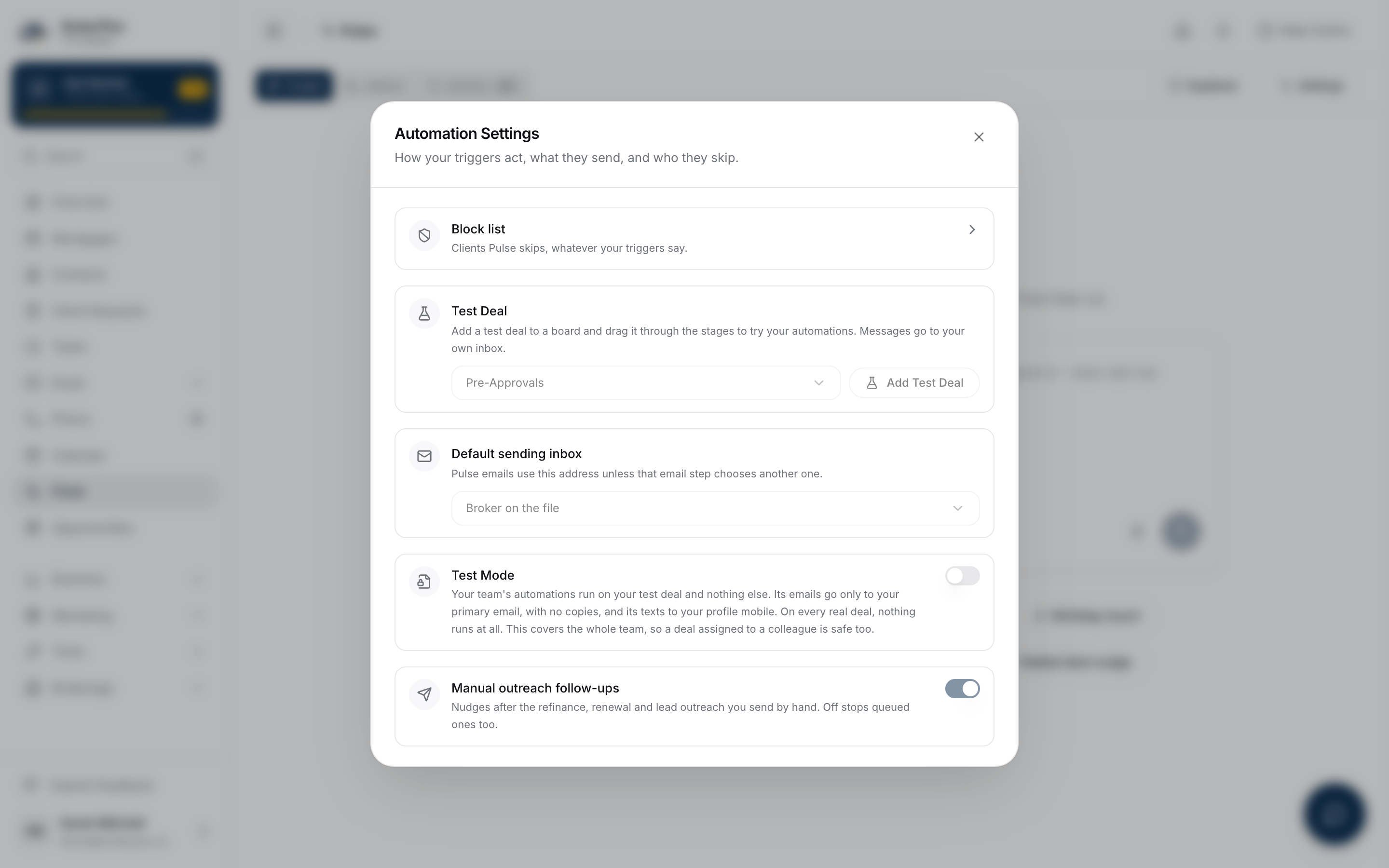
Open Pulse, press the settings button, pick a board under Test Deal and choose Add Test Deal. Once one exists, the same card names the board it sits on, opens it with Open Board, and takes it away again with Remove Test Deal. The board opens with a new card in its first column, hatched in yellow and carrying a Test Deal chip so nobody mistakes it for a real file.
The same control sits on the board itself: open Deals, pick the board, press the more button at the right of the toolbar and choose Test Deal.
Each board holds one test deal. Adding one again on a board that already has one does not make a second; it brings you back to the one that exists.
When you are finished, press the bin icon in the top right of the card on the board, or choose Remove Test Deal in Pulse settings. Either removes the deal along with everything it produced.
The Client Is You
The test deal's client is your own account. Every email and text an automation sends on it arrives in your inbox and on your phone, in the wording a real client would get. Nothing leaves the building.
Turn Test Mode on in Pulse settings before you start. It is off until you switch it on, because a new automation is created switched off and cannot reach anyone until you turn it on yourself. While Test Mode is on, your automations run on the test deal and on nothing else. Every other deal is left alone completely: no email, no text, no task, no tag, no stage change, whatever the automation says. So you can try a whole automation on a board full of real clients without any of them hearing from you. This covers everything in your Pulse library, including the triggers you add from a board stage.
On the test deal, email and text steps follow their automatic-send or review setting. Emails go only to the automation owner's primary account email, never to the client's address or a custom recipient. All CC and BCC copies are dropped, including the principal broker copy. Texts go only to the owner's profile mobile number; without one, the text does not send.
Test emails have [Test Mode] in their subject and start a separate conversation. They do not count as client outreach or time saved, and do not include open tracking or a client unsubscribe link. A message prepared on the test deal stays broker-only even if you turn Test Mode off before it sends. A message an automation drafted on a real deal does not send while Test Mode is on, even if you approve it. Paused or archived automations still do not send.
The separate Send Test preview keeps its existing behaviour.
Some things are switched off on it deliberately. Paid identity screening is refused, and the test deal cannot be enrolled in monthly equity reports. Automations that assign tasks to teammates still assign them, so warn the team before you run one that does.
Move It Across the Stages
Drag the card from column to column the way you would a real deal. Each stage that has an automation attached fires it, with the same delays and the same draft or send choice you set on the trigger.
A trigger fires once per deal by default
Moving the same deal out of a stage and back in does not run it again, so a trigger tested that way looks like it has stopped working. Open the trigger and set How often it can fire to Every time it happens to let it run more than once on a deal.
Read the history as you go
Open Pulse, switch to Activity and read Already Sent to watch each step land. The rows name the test deal, so you can tell the run apart from your live outreach.
If an automation drafts rather than sends, the draft sits in the Pulse queue like any other. Approve it and the message arrives in your own inbox.
Reset It and Go Again
When you want a clean run, open the test deal and choose Reset Test Deal from its actions menu. The same control sits on the card's quick view from the board. The reset clears every run, task and draft the test deal produced and moves the card back to the board's first column.
What to Do Next
- Read Your Automation History to see every message a run produced.
- Build Your First Automation if the board has nothing attached to test yet.
- Test an Automation Before It Goes Live to read a whole run without a deal at all.