
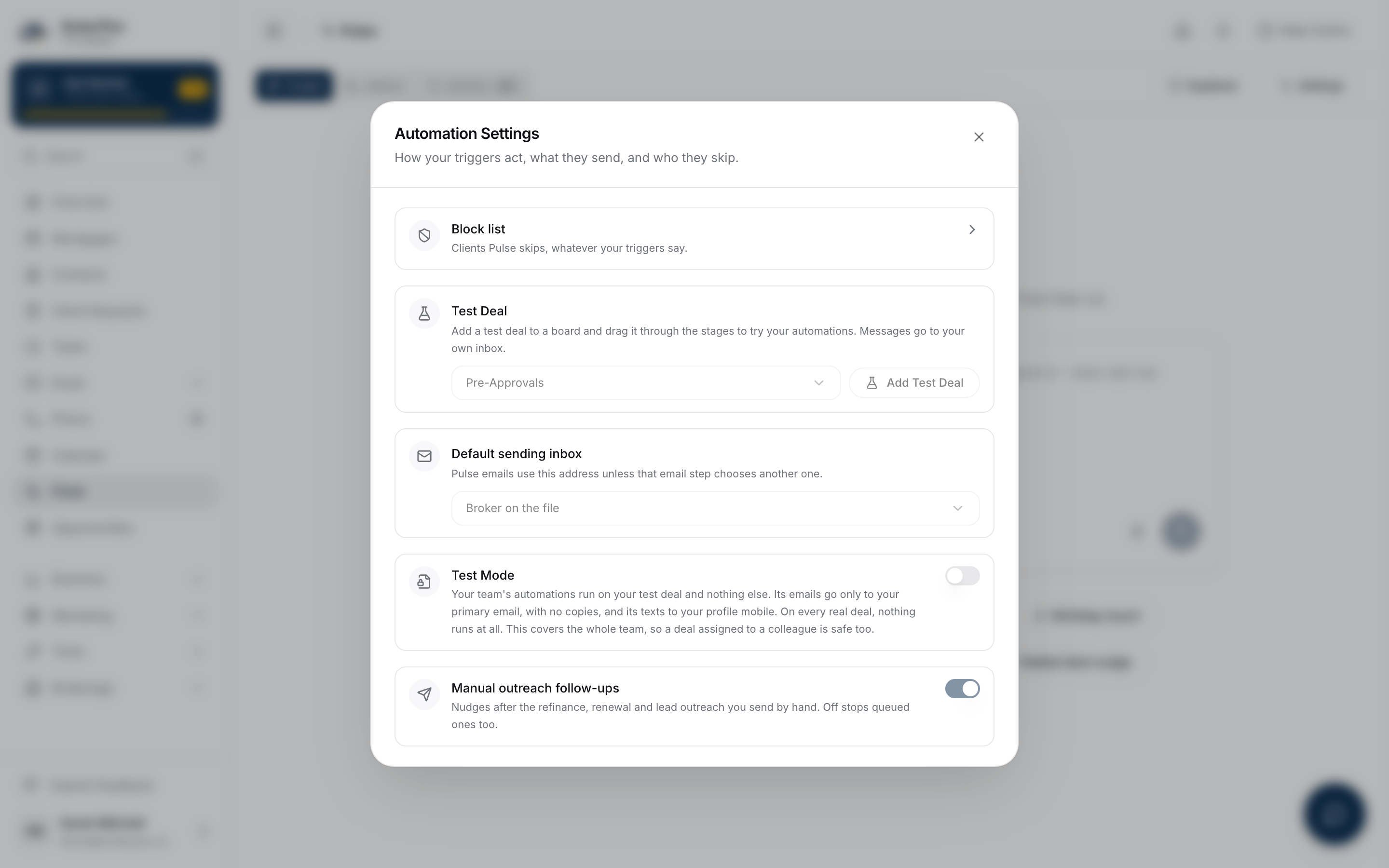
An automated email has to leave from somewhere, and Pulse gives you three ways to decide where: nothing set, a personal default, or a choice on one step. Each narrows the one before it, so you only have to touch the setting that actually needs to change.
Watch Mandric walk you through this topic
12:47Who an Automated Email Comes From by Default
Set nothing, and every automated email sends as Broker on the file, the broker assigned to that deal. This is the right answer for most brokerages: a client's mortgage anniversary email should come from the person who actually holds their file, not from whoever built the automation.
Set a Default Sending Inbox
Open Pulse settings and find Default Sending Inbox. Pick any connected mailbox here, including a shared team address, and every Pulse email uses it unless a step names something else. The mailbox has to have email turned on for it to appear in the list; if you connected an inbox for calendar only, turn email on for it first, or the send has nowhere to file the reply it expects.
Override It on One Step
Open a step's advanced settings and you will find Sends From, a picker of the same connected mailboxes. Leave it blank and the step falls back to your default sending inbox, or the broker on the file if you have not set one. Name a mailbox here and this one step always sends from it, no matter who owns the deal or what your default says.
Your Signature on an Automated Message
Every email step includes your signature by default, so a client reading it sees a full sign-off rather than a bare message. Turn Include Your Signature off inside a step's advanced settings for a short, one-line nudge where the signature would outweigh the message itself.
When a Team Mailbox Is the Right Answer
A shared address like experts@yourbrokerage.com is exactly what the default sending inbox is for. Pick it when a sequence should read as coming from the team rather than any one broker, such as a first-touch nurture campaign nobody has been assigned to yet. This is a personal setting on your own account, not a platform-wide switch, so each broker on a shared board can point their own automations at a different address without disturbing anyone else's.
What to Do Next
- Write an Automation Template to control what the email actually says once you have set who it comes from.
- Connect Your Email if the inbox you want is not on the list yet.
- Hold Everything in Read-Only Mode to test a new sending inbox before real clients see it.