
Use Tasks as the action queue for work across deals and contacts. Triage what is due, assign it to the right person, and snooze or complete it without losing the relationship context.
Watch Mandric walk you through this topic
6:49Triage the Queue
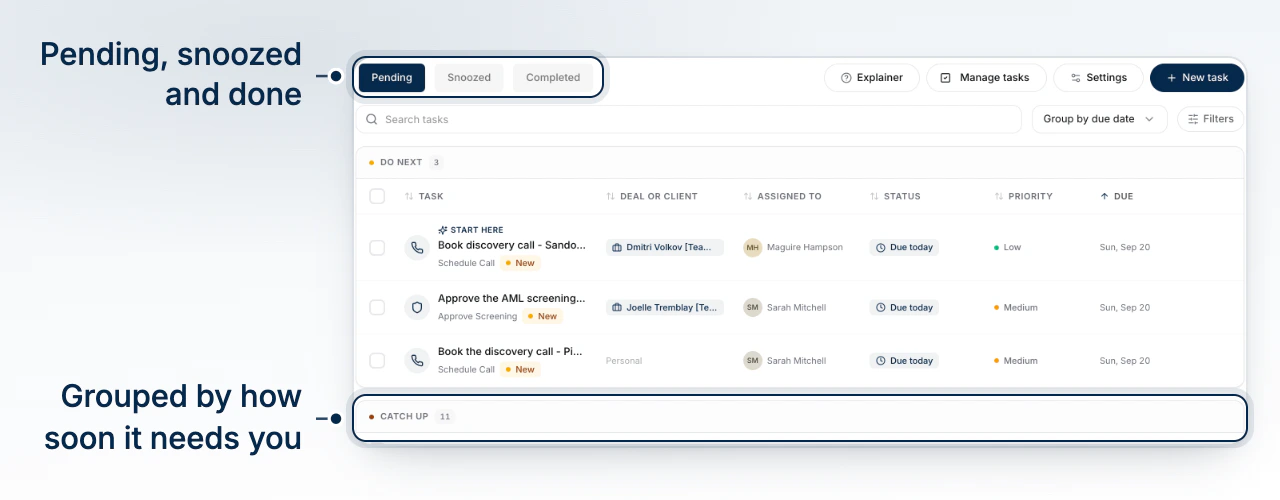
Go to Tasks and switch among Pending, Snoozed, and Completed.
Pending work is grouped into Do next, Catch up, and On the radar. Narrow the list with All tasks, Priority, Assigned to me, and New.
Create and Assign a Task
- Select New and enter the Title.
- Add optional Details, Priority, a deal link, due date, and assignee.
- Confirm the assignment and create the task.
Date-only due dates are stored at 5:00 PM local time. A deal-linked task inherits the deal team. Other tasks require a writable team, and the assignee must be an active member of that team.
Update Active Work
Open a task to edit its notes, progress, deal link, priority, assignee, due date, and snooze settings.
Snooze until Tomorrow, In 3 days, Next week, or a custom date at 9:00 AM local time. If the due date is approaching, the task can resurface within three days even when its snooze date is later.
Complete or remove a task with the six-second Undo window. Reopen a completed task when the work becomes active again.
Understand Automatic Tasks
BrokerPlus files some tasks for you. Four watch a live file:
- Closing date approaching
- Funding confirmation
- Rate hold expiring
- Condition due
One watches a conversation:
- Unanswered email, when your last email on a file goes unanswered. This one starts off. Turn it on when you want quiet files to reach your queue, and set how many days to wait first.
The rest sweep your book, and they also start off: Stalled lead, Client touchpoint, Renewal opportunity, and Refinance opportunity.
Go to Settings > Tasks to turn any of these on or off and set its timing. One switch at the top stops all of them at once. View-only users can inspect tasks but cannot create or change them.
What to Do Next
Continue with Work Your Leads.