
Overview starts with a working layout, but it is not the only one you can have. Customize turns the grid into something you build: pull in the widgets you actually check, drop the ones you don't, and size each one to how much room its numbers deserve.
Watch Mandric walk you through this topic
4:09Turning On Customize Mode
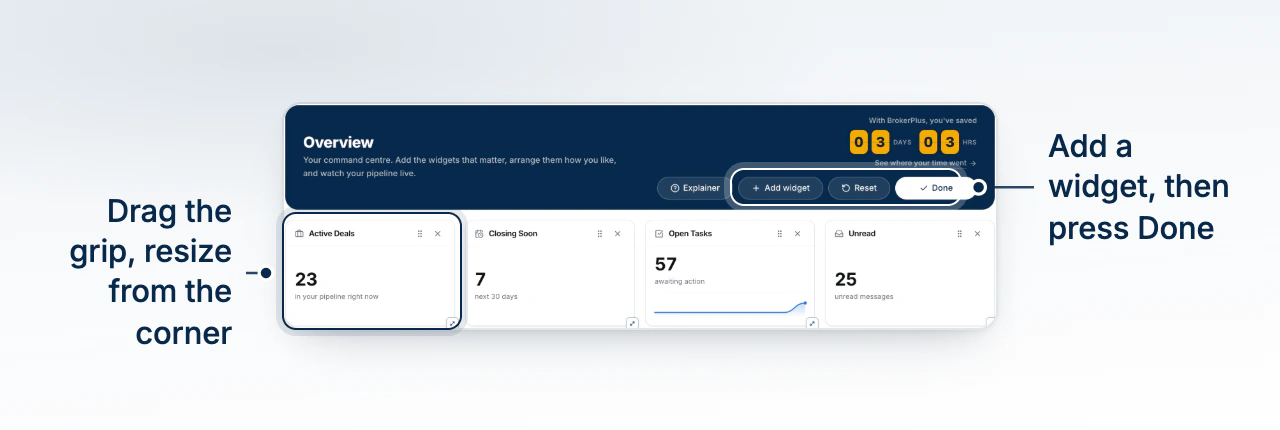
Customize sits in the toolbar above the grid. Selecting it swaps the toolbar to Add Widget and Reset, and every card on the page grows a drag handle and a remove button along its top edge. Nothing you do in this mode changes anything until you release a drag or press remove, and Done takes you back to a plain read of the page.
Adding a Widget From the Library
Add Widget opens the full library, organized into eight groups: Metrics, Volume and Revenue, Charts, Pipeline Shape, Activity, Lists and Feeds, Boards and Inbox, and Tools. Search narrows the list as you type, and a widget already on your page carries an Added badge so you are not guessing whether you have it twice. Selecting a card drops it straight onto the grid, slotted into whatever gap fits it best rather than tacked onto the end, so a wide card added behind narrow ones doesn't leave a strip of empty space behind it. You can still drag it from there.
Dragging, Resizing, and Removing
Grab the handle at the top of a card and drop it over another to swap their places; the rest of the grid reflows around the move. A handle at the bottom-right corner of each card resizes it, snapping to the grid as you drag and never shrinking past what that widget needs to show its content. The X beside the drag handle removes a card outright. None of this touches your deals, tasks, or numbers; you are only reshaping which of them you see and how much space each one gets.
Resetting to the Default Layout
Reset, in the Customize toolbar, replaces whatever you have built with the starting set of fourteen widgets described in Read Your Overview Page. There is no undo once you confirm it, so treat it as a return to zero rather than a way to fix one card.
Reset clears widget settings too
A widget that holds its own text, like your personal notes card, keeps that text as part of the layout entry for that specific widget. Removing the widget or resetting the whole layout discards it along with the position and size. See Keep Notes on Your Overview before you reset if you have been using one.
Where Your Layout Is Saved
Your arrangement is written to the browser you built it in, not to your account on our servers. Sign in on another computer and you will see the default fourteen widgets until you customize there too, and nobody else on your team is affected by anything you move here. If you want your Time Saved ticker or a Deal Board to look the same on every machine you use, you will need to arrange each one separately.
What to Do Next
- Read What Time Saved Counts to understand the figure the ticker widget shows.
- Keep Notes on Your Overview once you have added a notes widget.
- Go back to Read Your Overview Page for what the fourteen default widgets mean.