
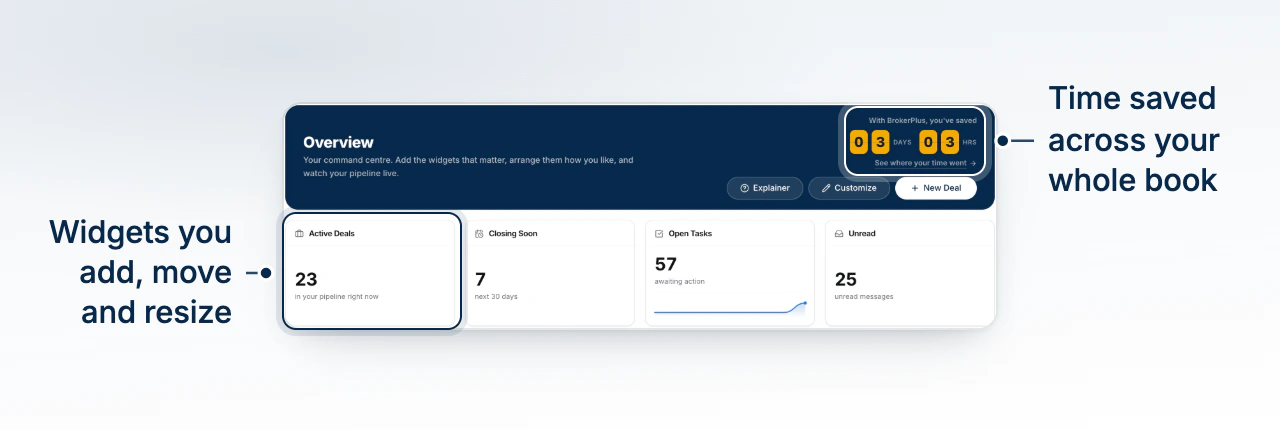
Overview is the page you land on at sign-in. It is a grid of widgets reading from your live deals, tasks, inbox and revenue, with a time saved ticker across the top. This article covers how to read it and what to act on first.
Watch Mandric walk you through this topic
4:09What the Overview Page Collects
The page loads your deals, your boards, your pending tasks, your inbox folder counts, your revenue for the last twelve months and your time saved summary in one pass, so the first paint already carries real numbers. After that it stays live: when something happens in your account or a message arrives, the affected widgets refetch on their own. You do not need to reload.
Pending tasks exclude anything you have snoozed to a future date. A snoozed task is not awaiting action right now, so it stays out of these counts until it resurfaces.
The Widgets You Start With
A new account opens with fourteen cards. Four counts sit across the top: Active Deals, Closing Soon, Open Tasks and Unread. Below them are Today, All Open Tasks, Deal Flow, Needs Attention, Pipeline Funnel, Deals by Type, Closings by Month, New Leads by Month, Referral Sources, and a full Deal Board at the bottom.
What Deserves Your Attention First
Read the page top down. Today ranks what needs you now. Needs Attention holds your top open tasks. Closing Soon counts deals closing in the next thirty days, and Unread counts messages nobody has opened.
Empty is a real answer
A list widget with nothing in it shows All caught up rather than a blank frame. That is the widget working, not failing to load.
Moving From a Card Into the Record
Rows are links, not decoration. A task row opens the deal it belongs to, or the Tasks page when the task has no deal. A deal row opens that deal. A Pipeline Funnel stage opens your deals list filtered to that stage.
Why Your Page Differs From a Teammate's
Your arrangement is saved in the browser you built it in, so signing in on another computer shows the starting layout until you arrange it there too. Rearranging your own page never changes anyone else's. Customize reveals Add widget and Reset, and Reset returns you to the fourteen cards above.
What to Do Next
- Add, Move, and Resize Widgets to make the page match your day.
- What Time Saved Counts to read the figure at the top.
- Triage the Tasks Page to work the ranked list.