
A task is one piece of work someone still owes a file. You can file one from the tasks page, but the better habit is to file it from the deal or the contact it belongs to, because the link decides who can be handed it and where it shows up later.
Watch Mandric walk you through this topic
6:49Creating a Task
- On the tasks page, click New task.
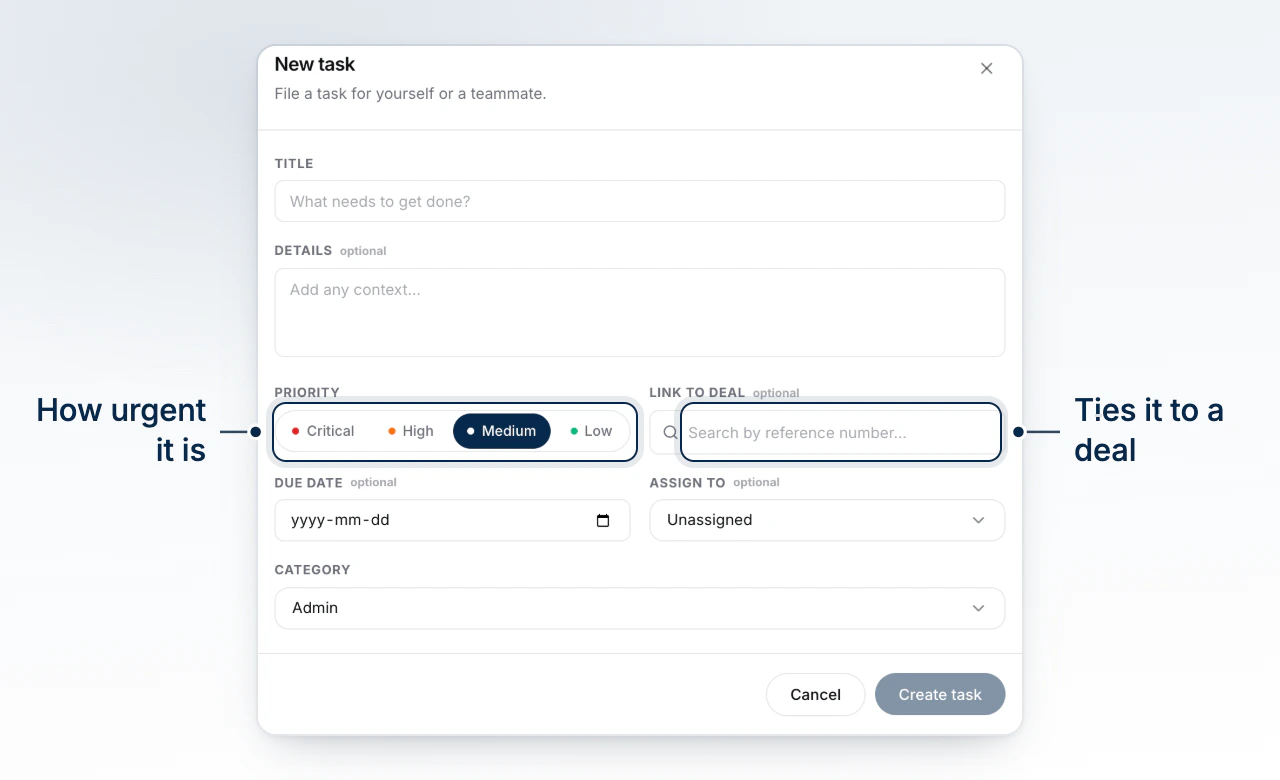
- Fill in Title. It is the only required field, and the button stays disabled until it has text. Use Details for context your teammate will need.
- Link to deal searches your deals by reference number. Pick one and it collapses to a chip you can remove.
- Click Create task.
Creating One From a Deal or a Contact
The Tasks section on a deal has its own New task button, and the task arrives already linked to that deal. Each row in the deals table carries an add task button that does the same thing without opening the deal. On a contact, the tasks card has a plus button that links the task to that person.
Filed this way, the link field is already filled and shown as Linked deal or Linked contact rather than a search box, so there is nothing to pick and nothing to get wrong.
Setting Priority, Category, and a Due Date
Priority is four choices, Critical, High, Medium and Low, and it opens on Medium. It drives where the task ranks in the queue.
Category groups the work: Lead & marketing, Underwriting - pre-app, Underwriting - submission, Broker, Fulfillment, Client experience, Compliance and Admin, followed by any categories your team has added. It opens on Admin, and it is what makes grouping and filtering the tasks page by category useful.
Adding Your Own Categories
When the eight built-in categories do not match how your team splits its work, the team's broker can add your own. Pick New Category at the bottom of the Category list, type a name and press Enter. The category is created for your team only (up to a maximum of 25) and the task you are filling in is filed under it straight away.
Your own categories appear after the built-in ones everywhere a category does: the task form, the task panel, the category filter and the group by category view on the tasks page, a deal's tasks and a contact's tasks.
To rename or delete one, the broker clicks Settings on the tasks page and goes to Categories. Other teammates see the categories but cannot add, rename, hide or delete them - only the team's broker can. Deleting a category does not delete its tasks. Each one goes back to the category it would have had on its own, and tasks BrokerPlus files for you always use the built-in categories.
Hiding Built-In Categories
If your team never uses some of the built-in categories, the team's broker can hide them. Click Settings on the tasks page, go to Categories and click a built-in category to hide it. Click it again to show it. Hidden categories come out of the Category list on the task form and the task panel for your team only.
Hiding a category does not move or delete anything. Tasks BrokerPlus files for you still use it, and they still show under it in the category filter and the group by category view. A task that is already in a hidden category keeps it in its own Category list. Admin cannot be hidden, because a new task opens on it.
Due date takes a calendar day and files the task as due at 5pm local time that day. Once a day is picked, a time box appears beside it. Change it when the task has to happen at a set time, such as a call a client asked for at 2:30. The time then shows next to the date in your task list and on the contact, and a task left at 5pm shows the date alone.
To change the time later, open the task and edit it beside the due date in the side panel.
Who You Can Assign It To
Assign to lists only the people this task can actually be routed to, worked out from the team that owns the linked deal or contact. Leaving it on Unassigned is a real choice and the task stays unassigned. Assigning it to somebody else sends them an in-app notification naming the task and its deal. Assigning it to yourself sends nothing, since you already know.
The list is short for a reason
Offering the whole roster and rejecting the assignment afterwards is how brokers used to hit an eligibility error while editing a title. The picker now answers the same question the save does.
Why Filing From the Record Is Better
A task inherits the team of the deal or contact it is about, and that is what decides who sees it and who can take it. A task with no link falls back to your own team instead.
What to Do Next
- Triage the Tasks Page to work the queue you just added to.
- Tasks BrokerPlus Files for You to see what gets filed without you.
- Discuss a Task With Your Team when a task needs a conversation.