
A spreadsheet is a one-time upload. Finmo is a live connection: you start the first import yourself, and from then on the two stay in step on their own. Neither path creates records until its required validation is complete.
Watch Mandric walk you through this topic
2:35Getting the File Out of Your Old CRM
Export every deal your CRM holds rather than a filtered view. BrokerPlus skips what it cannot use, so too much is safer than too little.
Filogix Expert. Open Tools > Extract to CRM, press Select All, choose the Consolidated export type, then press Extract to CRM again to download the file. Only Expert (Legacy) exports all of its deals; Expert Pro misses some details.
Scarlett. Open Tools > Export, set Agent to your own name, leave the other filters blank, then press Export Now and download the file.
BluMortgage. Press the gear icon and open Data Administration > Export. Start an export, set Module to Mortgages, and set the custom view to All Mortgages rather than All Closed Mortgages. Take all fields, as a CSV.
Velocity and Finmo need no export at all, because BrokerPlus reads them directly. See Import Your Book From Velocity or Import Your Book From Finmo instead.
Your CRM Is Not on This List
Export whatever it will give you and send it over. If BrokerPlus cannot read that file yet, we would rather get on a call and work it out with you than have you retype your book.
Import a Spreadsheet
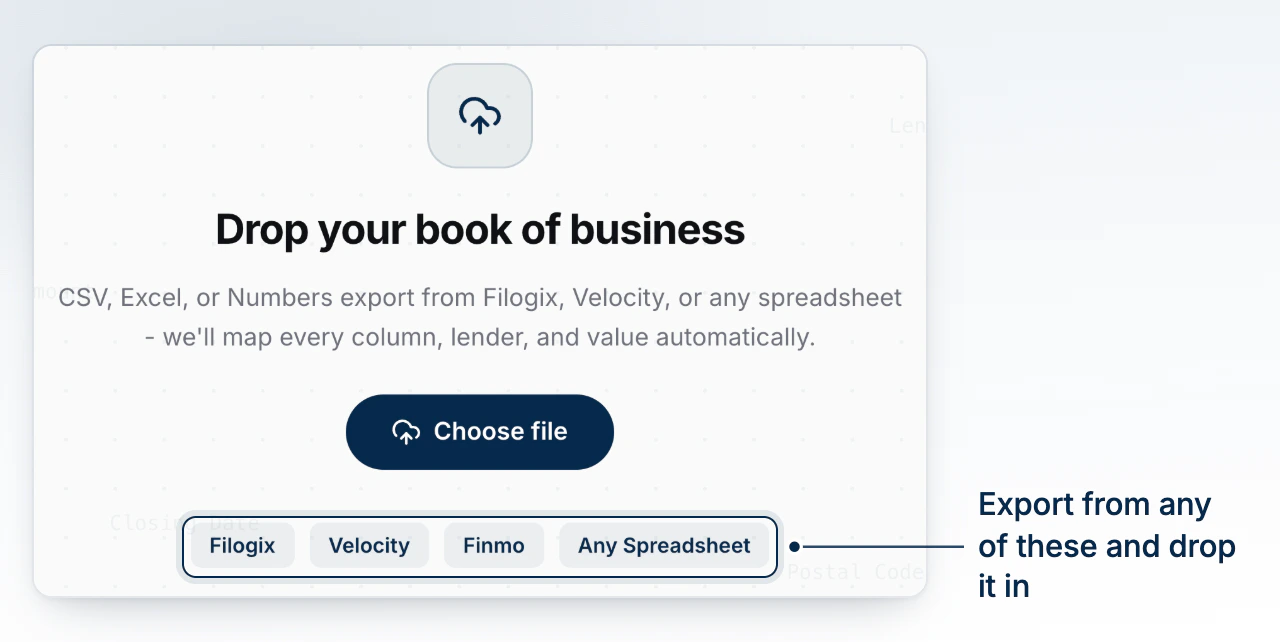
- Go to Deals > Import and add a CSV, XLSX, XLS, or Numbers file up to 100 MB. BrokerPlus reads only the first sheet.
- Wait while BrokerPlus moves through Read, Map, Recognize lenders, and Normalize.
- In the review pane, correct column mappings, exclude agents from multi-agent exports, and confirm lender matches.
- For deals edited after an earlier import, choose Overwrite all, Keep edits, or Skip touched. Overwrite all is selected by default.
- Confirm only when the analysis shows Ready to import.
No contacts or deals are created before confirmation. Header mappings you save can be reused and managed under Settings > Imports & Mappings.
Import from Finmo
- Go to Settings > Imports & Mappings and open Finmo.
- Enter a valid Control Centre API token and choose Production or Staging.
- Start the first import. After it finishes, a change you make in Finmo reaches BrokerPlus on its own, and a deal you start in BrokerPlus travels back to Finmo.
A Finmo run excludes cancelled, declined, abandoned, and duplicate email-plus-property applications. One run can import up to 5,000 eligible applications. Each application is matched on its own Finmo identifier, so running the import again updates what is already there rather than doubling your book.
BrokerPlus keeps every linked deal current from there, rechecking the ones that have moved recently more often than the ones that have settled. See Mirror Your Book From Velocity or Finmo for how current the mirror is and which of your edits travel back out.
Review before creating records
Fix mappings, agent exclusions, lender matches, environment, and overwrite behaviour before confirmation. Importing first and cleaning up later can create avoidable duplicate or misassigned records.
What to Do Next
Continue with What the CRM Page Shows.