
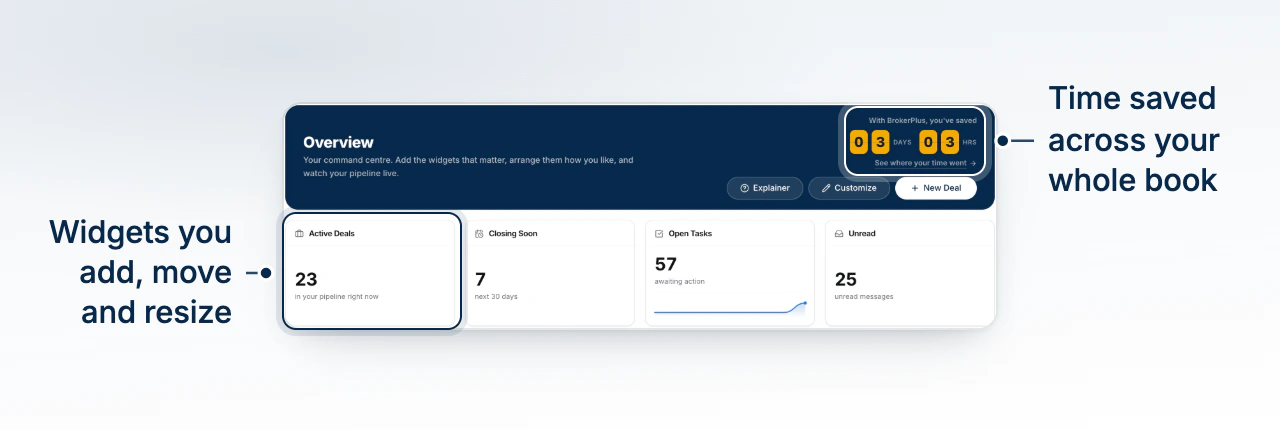
Overview is the page you land on at sign-in. It carries one figure at the top, a grid of widgets underneath, and the rail down the left that reaches every other surface. The widgets, their sizes, and the order of the rail itself are all yours to set.
Watch Mandric walk you through this topic
4:09The Overview Page and Time Saved
With BrokerPlus, you've saved sits in the navy header with a running total beside it. It counts work BrokerPlus did on your behalf that you accepted; something it offered and you turned down banks nothing. See where your time went opens the breakdown: Where your time went by category, Deal-equivalent capacity, Start to submission, and Where you could save next.
Move, Resize, Remove and Add Widgets
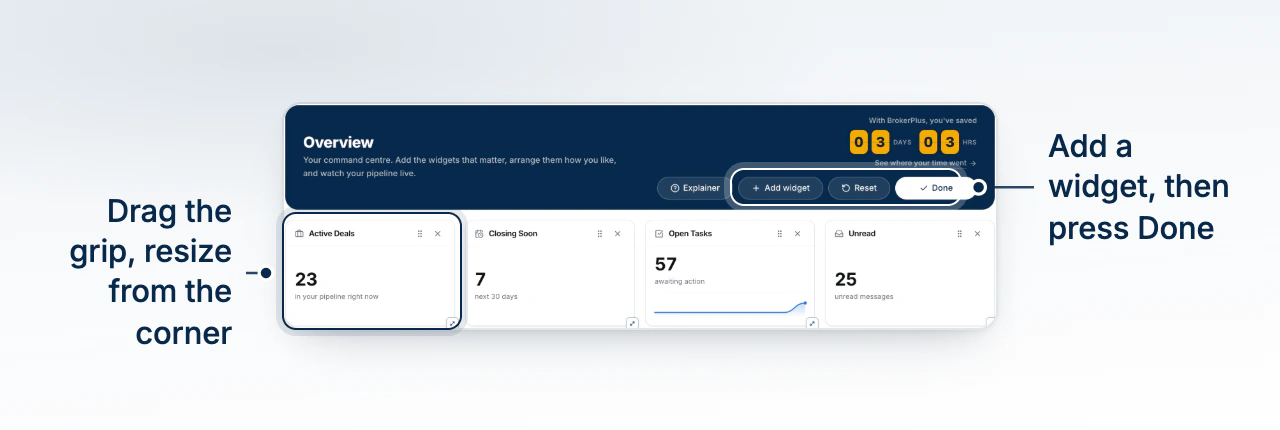
- Click Customize in the page header. Each widget grows a grip and an X.
- Drag the grip to move a widget. The grid reflows around wherever you drop it.
- Drag the handle at the bottom right corner of a widget to resize it.
- Click the X to take a widget off the page. The deals, tasks and messages underneath are untouched.
- Click Add widget for the Add a widget library, searchable and filtered by category. Reset restores the default layout, and Done leaves editing.
Your layout is per browser
Your arrangement is saved in the browser you built it in, so signing in elsewhere shows the default page until you arrange it there too. Rearranging yours never changes a teammate's.
Reading the Sidebar, Section by Section
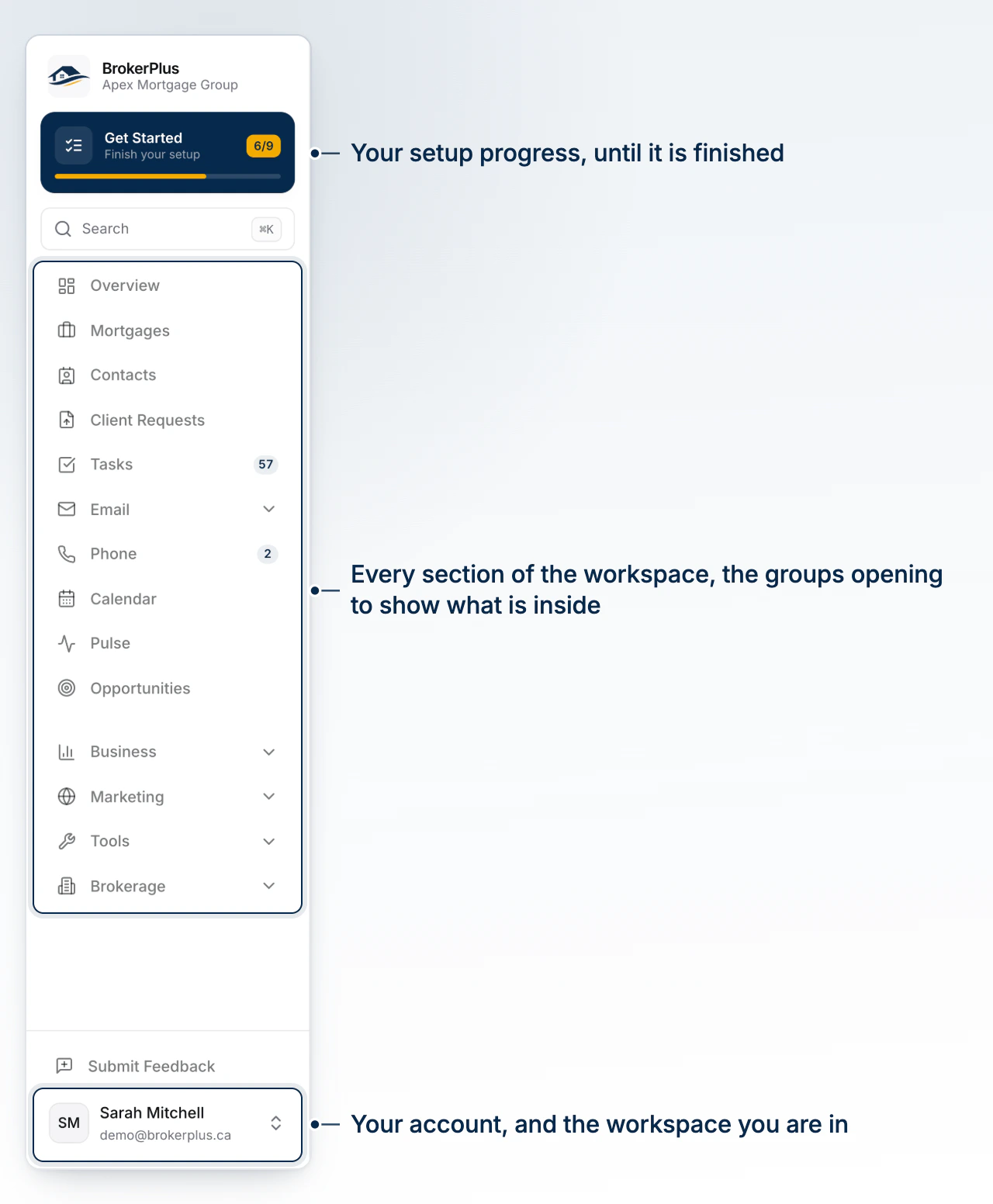
The rail opens with the surfaces you touch daily: Overview, Mortgages, Contacts, Client Requests, Tasks, Email, Phone, Calendar, Pulse and Opportunities. Below the gap sit four groups that expand: Business, Marketing, Tools and Brokerage. A surface your access does not cover is not drawn at all.
Search, Collapse the Rail and Reorder the Menu
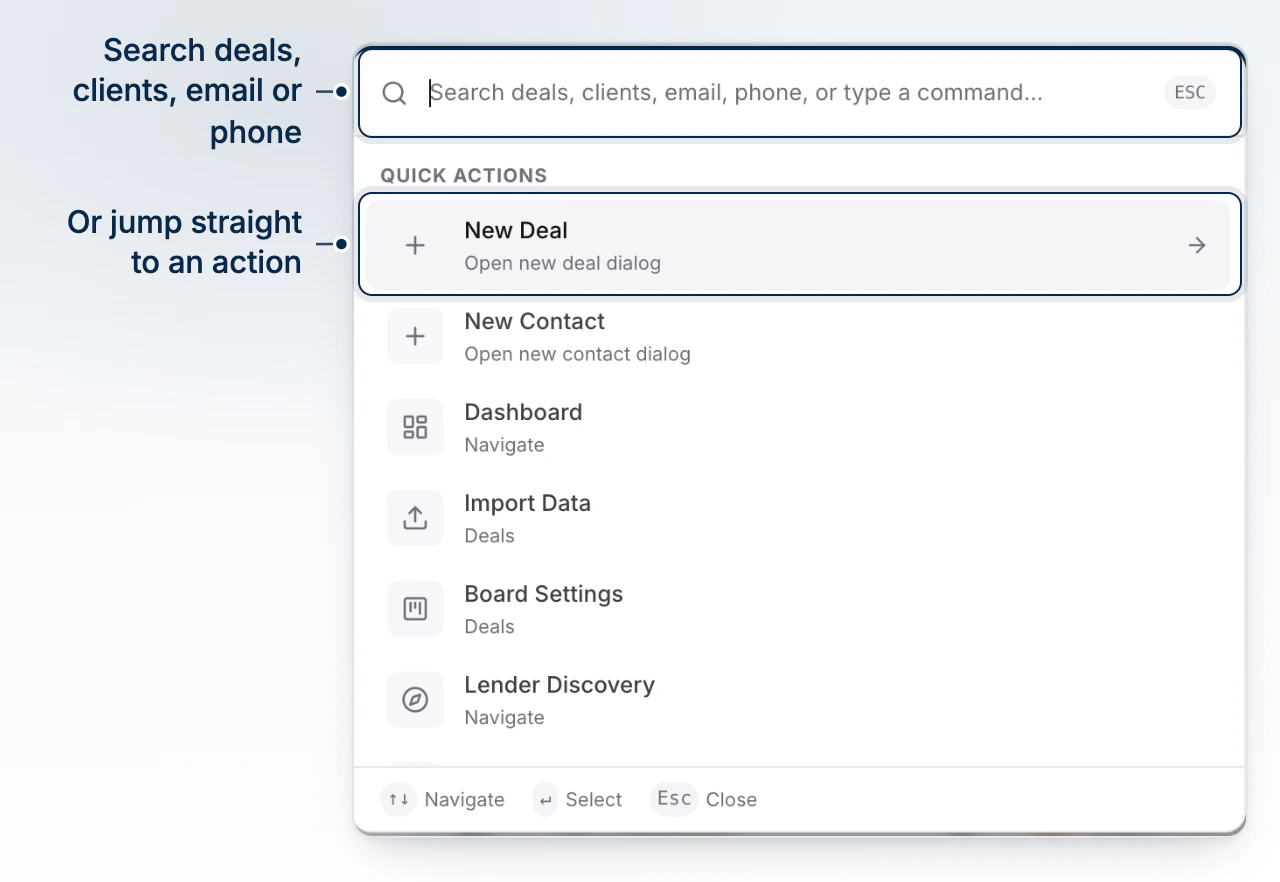
Search sits under the brand mark and also opens on Command K. It reaches deals, clients, email, phone or a typed command, grouped as Recently Visited, Quick Actions, Deals, Clients & Contacts, Request Templates and Boards. Collapse Sidebar in the page header folds the rail to icons and remembers that. Customize menu turns the rail into rows you drag, including the Gap that splits it; Reset to default order puts it back.
Your Account Menu: Settings, Team and Referrals
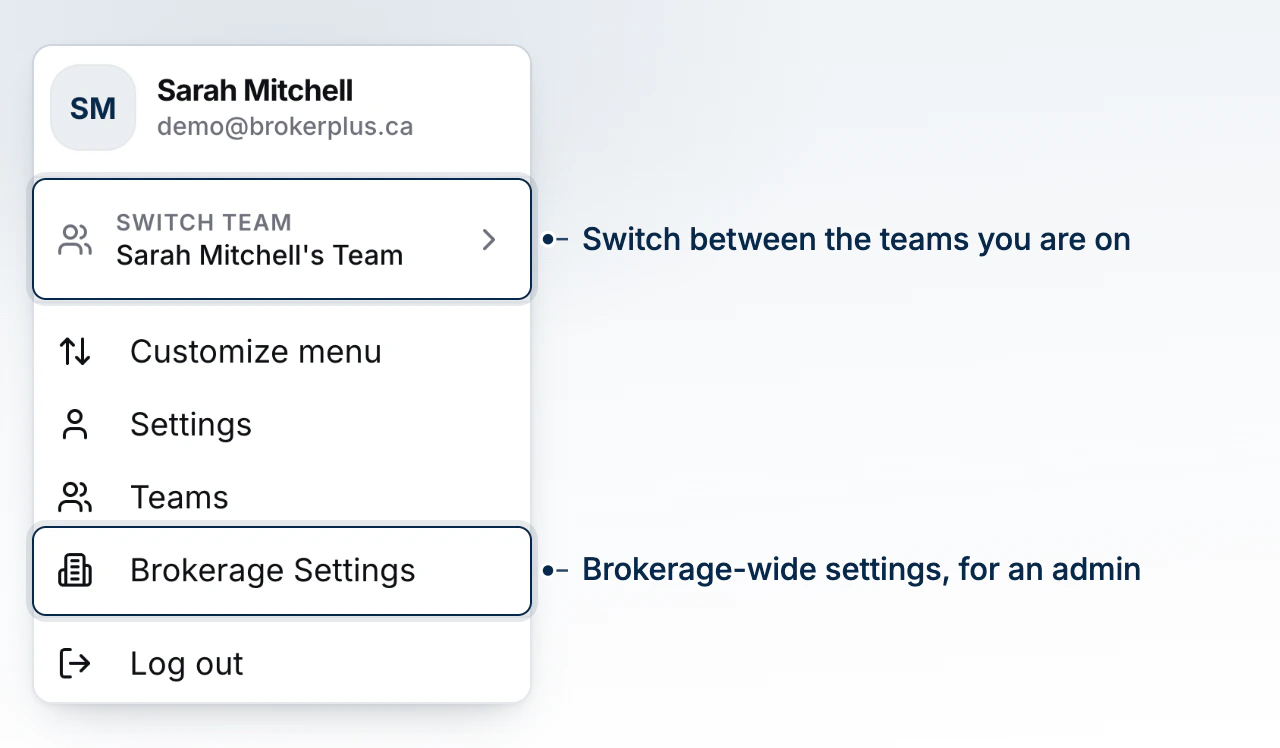
Your name and email at the foot of the rail open the account menu: the team switcher, Customize menu, Settings, Team, Referrals, Brokerage Settings for an admin, and Log out. Submit Feedback sits just above it.
The Explainer Pill and the Help Centre
Explainer in a page header opens a short recording for that surface, with chapters, common questions and a transcript. Help Centre in the top bar opens this help centre in a new tab.
What to Do Next
- The Get Started Checklist to see what setup is still open.
- Connect Your Email so the inbox fills with your own mail.
- How Boards, Stages, and Status Fit Together before you work your first deal.