
Watch Mandric walk you through this topic
3:34Brokerage > Compliance is the console for everything compliance touches across every team at once: what still needs a decision, what the monitoring feed caught, the rules every team's files must satisfy, and the record you'd hand a regulator. It's four tabs, one program.
Who Can Open This Page
This is a brokerage-level surface, not a team one, built for the people who carry the firm's compliance program: the owner or admin, and anyone appointed compliance officer. Admin rights decide what a tab lets you do further: only an admin can add a firm-wide rule, edit the setup, or open the Export tab.
Overview
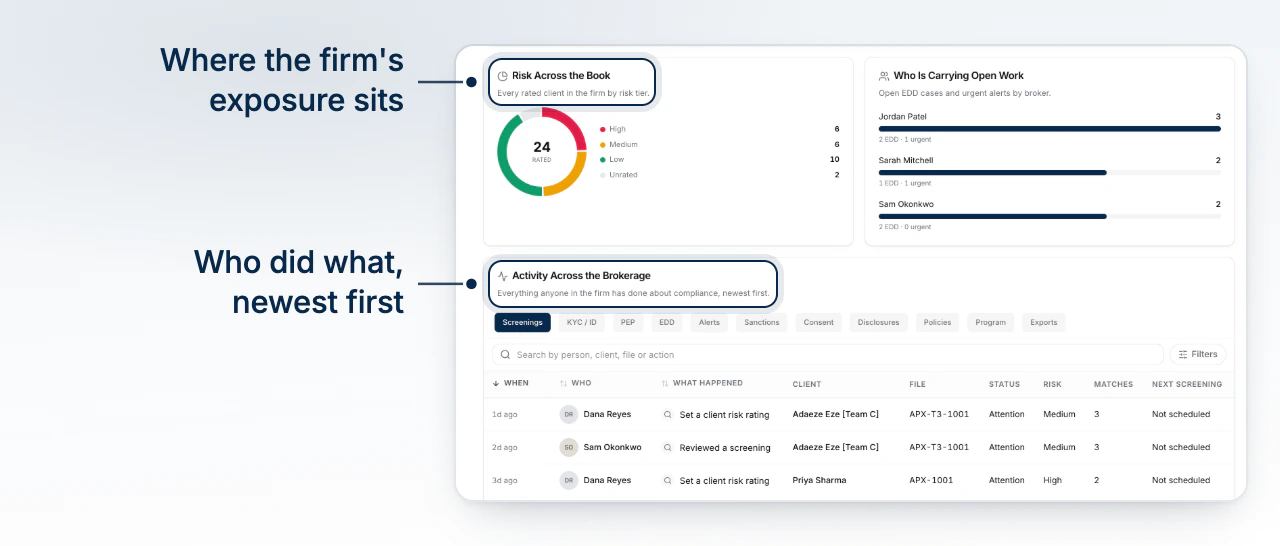
Overview is the console's front page: an activity feed of everything logged across the firm (screenings, EDD cases, alerts, exports, and more), filterable and searchable, next to the shape of the firm's risk. Until setup is finished, a checklist takes this tab's place instead of the dashboard (see Setup Checklist below).
Concerns (Flagged Clients and EDD)
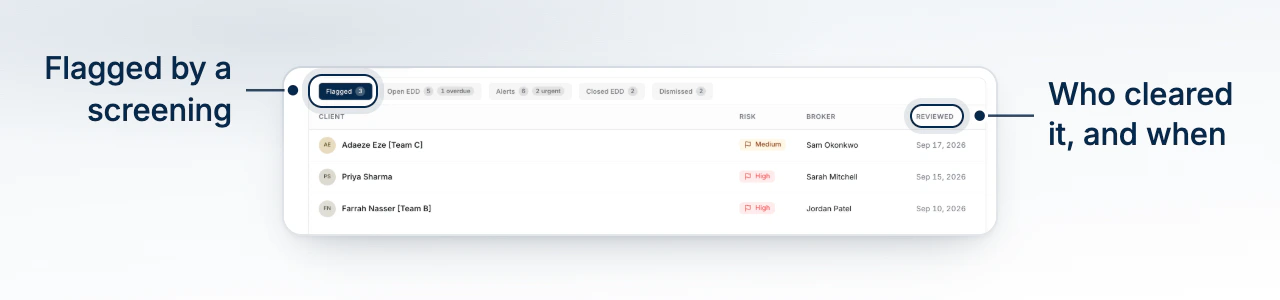
Open the Queue tab and it opens on Flagged: every client a screening turned up as elevated risk, across every team, with who reviewed them and when. Switch to Open EDD or Closed EDD for the enhanced due diligence cases those flags spawn, each showing its trigger, deadline, and whether it's overdue. Selecting a row opens the full record without leaving the queue. Manage Enhanced Due Diligence Cases covers running one of these cases end to end.
Alerts and Who Gets Told
The same Queue tab carries two more lenses, Alerts and Dismissed, for what the monitoring feed has caught: repeat flags on a contact, sanctions or adverse-media hits, anything worth a second look. Who hears about an urgent one is a setting on the Policies tab, not something you configure from the queue. Choose Who Gets a Compliance Alert walks through that routing.
Policies
Policies is where the firm's program lives: who's appointed compliance officer, where urgent alerts route, the requirements and documents every team's files must satisfy (alongside BrokerPlus's built-in forms and any brokerage package templates), which parts of the compliance library a team may add to on its own, and the firm's written policies. A rule set here reaches every team automatically with no edit control on their side; what a team has added for itself shows separately, clearly marked as theirs. What Your Compliance Program Covers and Add Your Own Compliance Requirement go deeper on this tab.
Setup Checklist
Until the program is fully set up, the page holds you on Policies and shows a checklist on Overview instead of the dashboard: appoint an officer, route alerts, add at least one requirement or document, and write the firm's policies. Each row ticks off the moment its step is done anywhere else in the product; nothing about the checklist is stored on its own. Once every step is checked, it disappears and Overview opens as the ordinary dashboard.
Building an Export
Export builds a stamped archive: pick a scope (one file, one client, or the whole book), pick which sections to include (concerns, EDD, alerts, screenings, requirements, the program record, activity), and BrokerPlus assembles it with a hash you can check later against the original. It's admin-only, and stays locked until setup is finished.
What to Do Next
- What Your Compliance Program Covers for what falls inside this program.
- Choose Who Gets a Compliance Alert to set up alert routing.
- Add Your Own Compliance Requirement to add a firm-wide rule.
- Navigate the Compliance Hub for the per-team version every broker works from.