
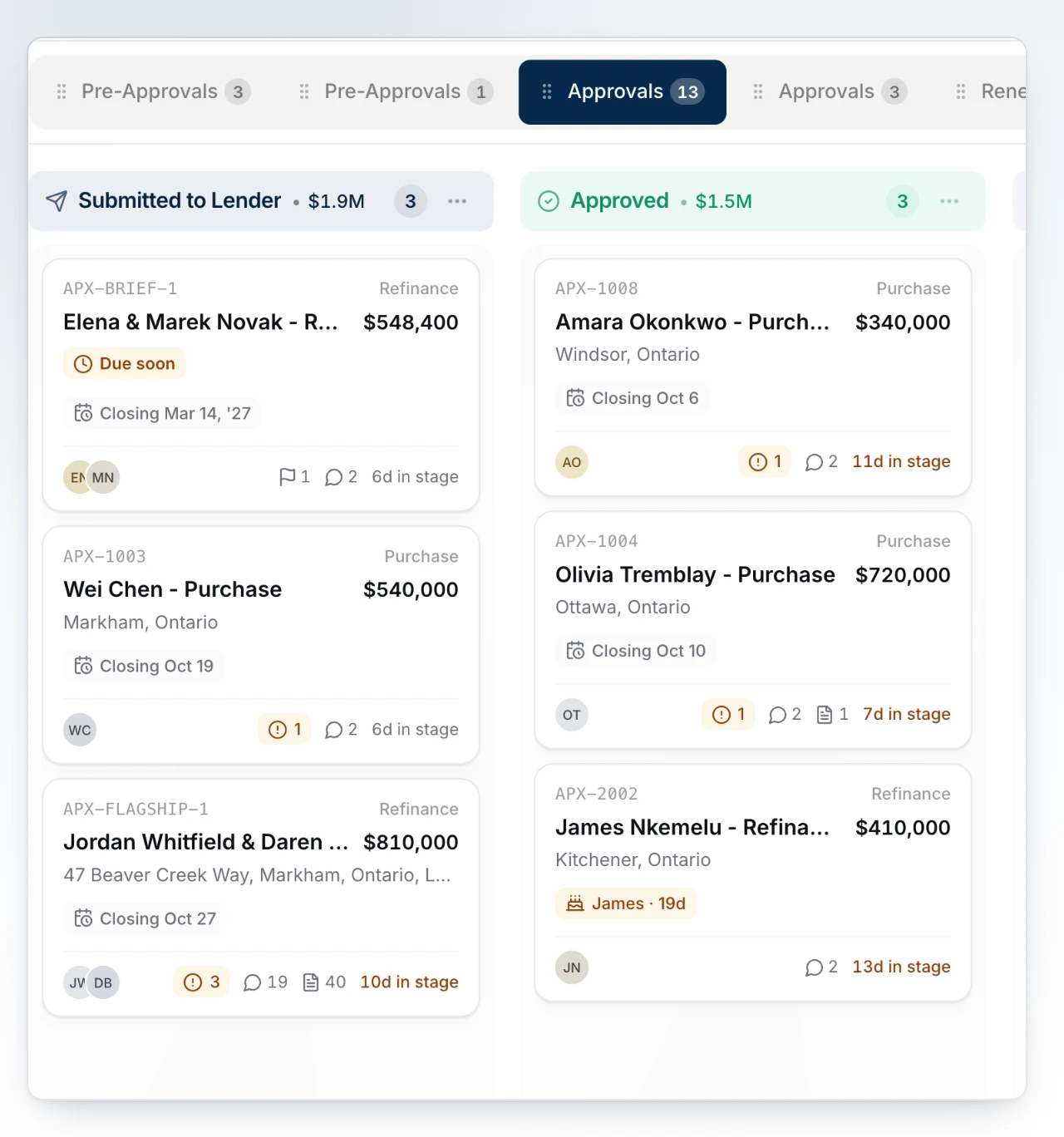
Use boards to organize active deals and stages to show where work sits. A stage is a pipeline position, not the deal's lifecycle status.
Watch Mandric walk you through this topic
8:13Review the Seeded Boards
Go to Deals, then Board Settings (/deals/board-settings). BrokerPlus starts with five boards, shared across your team:
- Pre-Approvals
- Approvals
- Renewals
- Reverse Mortgages
- Historical Deals
Press New Board to add a board of your own, from a template (Commercial, Private & Alternative, Construction & Draws, Refinances) or blank. Configure the seeded boards for the deal types you handle.
Configure a Board
- Open a board and update its name or description.
- Choose the allowed deal types. An empty list accepts every deal type.
- Edit stage labels and colours, then drag stages into the order your team follows.
- Place the stage that should receive new deals at the top.
Board settings autosave. Board Settings lists the boards your team can read, so a teammate on the same team sees the same boards you do; another team's boards are not offered here. View-only users cannot save changes.
Hide a Board You Do Not Use
Hiding takes a board off your own tabs. The board keeps accepting deals, your teammates still see it, and the deals on it are untouched. Use this when a board is in your way but the work on it must stay where it is.
- On Deals, open the "..." menu beside the search box and select Hide this board. You can also open Board Settings and select Hide This Board.
- The board leaves your tabs, and a hidden button appears beside them with a count.
- Select that button to list your hidden boards, then select Show on one, or Show all boards.
Your last visible board always keeps its tab, so the Hide this board option does not appear when only one board is left. If you open a link to a board you have hidden, it opens normally and keeps its tab for as long as you are on it.
Hiding is yours; archiving is everyone's
Hiding changes only what you see, and you can undo it at any time. Archiving stops a board accepting new deals for the whole brokerage. If you only want a board out of your way, hide it.
Change Stages Safely
Dragging a deal card changes only its stage. Use Mark funded, Mark closed, Mark dead, or Revive deal when the deal's lifecycle status changes.
Before removing a stage, move every active deal out of it. Before archiving a board, move active deals that must remain visible on Deals to another compatible board.
Stage and status are separate
Moving a card does not fund, close, kill, or revive a deal. Use the lifecycle actions so reporting and downstream work reflect the actual outcome.
What to Do Next
Continue with Create a Deal.