
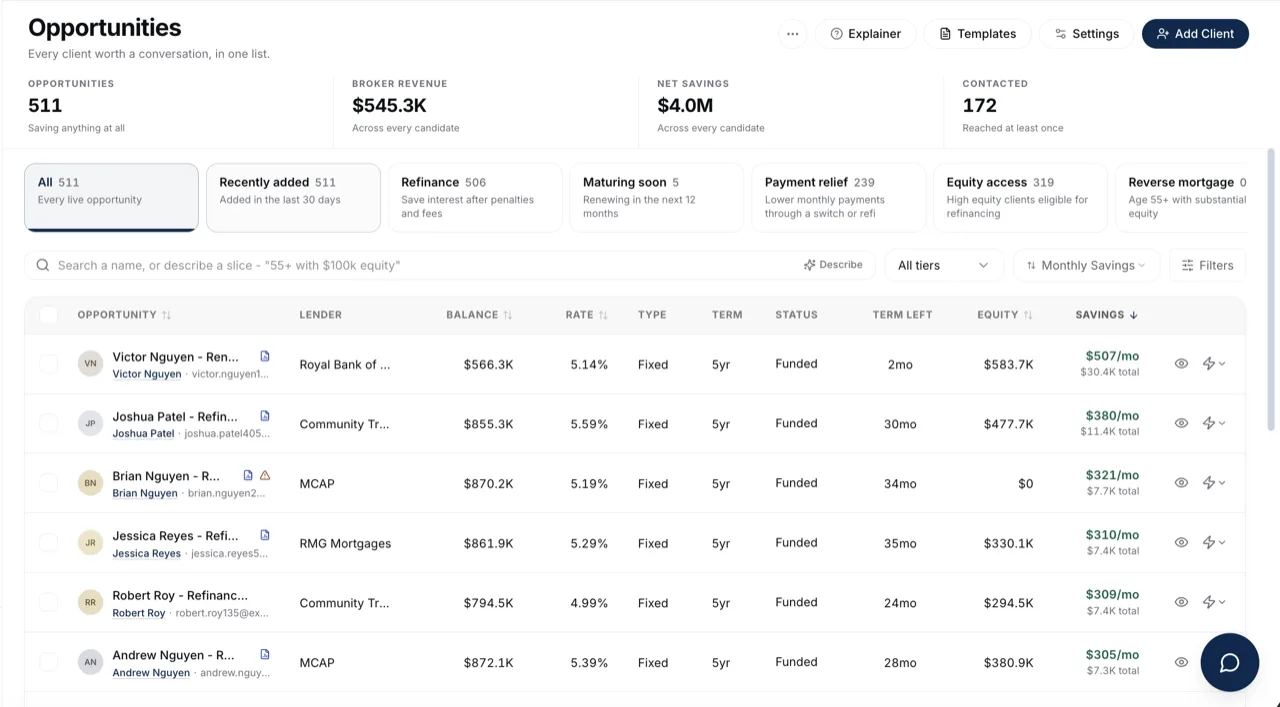
Every block gives you a slice of the book. The toolbar above the list is how you narrow that slice down to the handful of clients worth calling today.
Watch Mandric walk you through this topic
7:49When You'd Use This
Reach for these controls once a block or a search has already narrowed things down and you want to go further, whether that is pinning a savings tier, setting a break-even rate, or opening the full filters panel for something more specific like property type or credit score.
The Controls on the Toolbar
The search box, savings tier selector, and sort control sit directly above the list on every block, so the most common narrowing never requires opening a panel. A Filters button beside them opens everything else, and its own badge counts how many of those extra filters are active.
Saves at Rate
On the Refinance block, a Saves At Rate field lets you type a hypothetical new rate and see only the clients who would still come out ahead at exactly that rate, rather than the rate your current settings assume. Use it right before pitching a specific rate, to see who it actually works for before you start calling.
Strong Savings, Needs Review, and No Savings
The savings tier selector splits the list into three groups. Strong Savings clears your organization's savings floor after penalties and fees. Needs Review saves something but not enough to clear that floor. No Savings comes out even or behind after the penalty. Picking a tier is the fastest way to separate the calls worth making today from the ones that need a second look first.
Everything Inside the Filters Panel
Open Filters for the rest: which clients count (all, new opportunities, or a specific deal status), flags like hiding recently contacted clients or past-maturity files, missing-data severity, lender category, deal age, start year, rate type, referral partner, and range sliders for mortgage balance and home equity. Every one of these stacks on top of whatever the block and the toolbar already narrowed.
Filtering by Rate Type
Rate type narrows the list to clients on a fixed rate, a variable rate, an adjustable (ARM) rate, or a HELOC. It only offers the types that actually appear in your book, with a count beside each one. The same filter also sits in the Type column header, so you can narrow straight from the list without opening the panel, and a filtered column shows a filled funnel so you can tell at a glance.
This is the quickest way to build a list for a rate announcement. Pick Variable (and ARM, if you want both), select everyone, and save them as a segment. When the Bank of Canada moves its rate, you can send that segment an email explaining what it means for their payment.
Filtering by Referral Partner
Referral partner narrows the list to the clients a particular realtor, lawyer, planner or past client sent you. It only offers partners who are actually tagged on someone in your book, most-referred first, with a count beside each one. No referral partner is there too, so you can find the clients nobody has tagged yet and fill them in.
This is how you put together a list for a partner check-in: pick the partner, see which of their clients are coming up for renewal or could save on a refinance, and reach out with something specific to say.
To tag a client, open the opportunity and set Referral partner in the side rail: search for the person, or add them if they are new, and pick what type of partner they are, the same way you set Referred By on a contact. The same partner shows in the Referral Partner seat on any deal you start from that opportunity, and changing it on either one changes both.
Sorting the List
The sort control changes the order of the list, not its membership: highest or lowest monthly savings, total savings, equity, or borrowing power, alphabetically by name, or newest added first. Switching blocks resets you to that block's own default sort, but you can always pick a different one from here afterward.
Clearing Your Filters
Clear All inside the filters panel resets every range, checkbox, and selection back to its default in one click. It leaves the search box, savings tier, and sort exactly as they were, since those live outside the panel and are usually the ones worth keeping.
Common Gotchas
- Clearing filters does not clear a Describe search or change the block you are on. Those are separate layers and each has its own reset.
- A client can look missing from a filtered list simply because they were marked recently contacted or flagged for high LTV. Check the flags section before assuming a client dropped out of your book.
- Saves At Rate only appears on the Refinance block. A renewal has no rate-savings question to ask, so the field is not there.
What to Do Next
- Slice Your Book With The Opportunity Blocks if you want a different starting point before you filter.
- Search Your Book With Describe to set several of these filters at once in plain words.
- Act On A Filtered List once your list is narrowed to the clients worth calling.
- When A Client Is Not Showing Up if someone you expect to see is not appearing here.