
BrokerPlus ships a darker interface for anyone who finds the default easier on the eyes at night or under office lighting. It lives in one switch on the Profile settings page, in a card called Appearance.
Where Appearance Sits
Open Profile settings and find the Appearance card. It holds three controls: Carbon Mode, a link to your brand colours and fonts in Canvas, and a link to reorder your side menu. All three answer the same question, how BrokerPlus looks and feels on this device, which is why they sit together rather than being spread across separate pages.
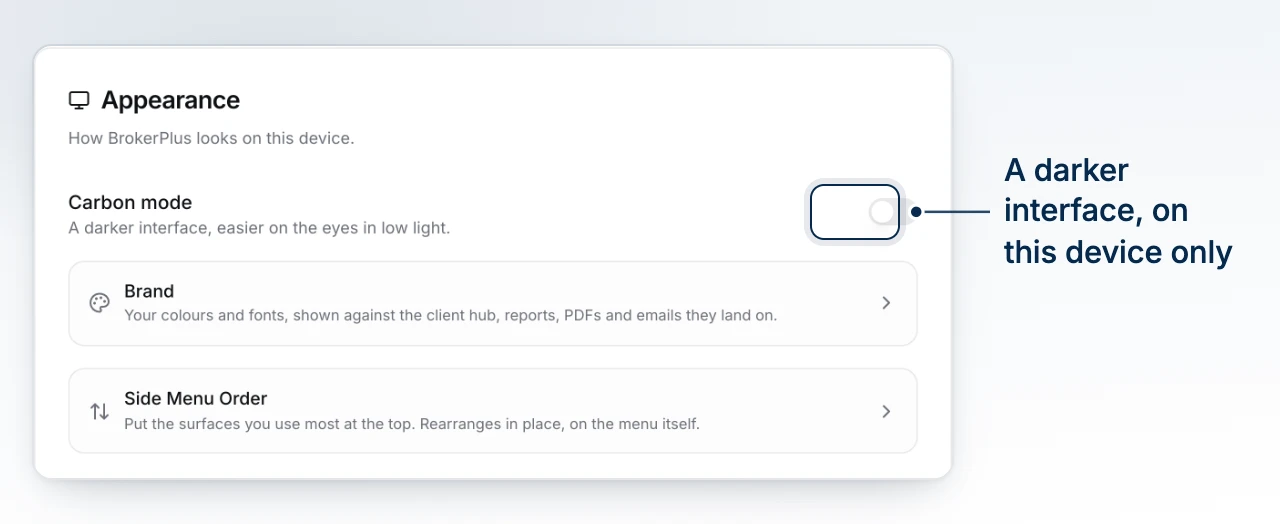
Turn Carbon Mode On
- Open Profile settings and scroll to the Appearance card.
- Switch on Carbon Mode.
The interface repaints immediately, no save button and no reload. Switch it off the same way to go back to the default light interface.
If You Searched for Dark Mode
Most people call this dark mode, and searching for that term inside BrokerPlus will still find this page. Inside the product the toggle is named Carbon Mode, so if a colleague tells you to turn on dark mode, or a help article mentions it, this is the switch they mean. Both names point at the same control.
The Choice Is Per Device
Carbon Mode is remembered by the browser you switched it in, not by your BrokerPlus account. That means:
- Turning it on in Chrome on your laptop does not turn it on in Safari on your phone.
- Signing in on a new computer starts you back on the light interface until you switch it there too.
- A teammate on your team sees whatever they last chose on their own device. There is no team-wide or brokerage-wide setting that forces Carbon Mode for everyone.
If BrokerPlus looks lighter than you expect on a different device or browser, this is why: switch it on there as well.
What Carbon Mode Does Not Change
Carbon Mode only changes how BrokerPlus looks to you while you work. It does not touch:
- Your brand colours and logo. Those are set separately, in Canvas, and are what clients see on reports, feature sheets and emails. Carbon Mode never reaches anything a client is shown.
- Your side menu order. That is its own control, right below Carbon Mode in the same card.
- Anyone else's screen. A brokerage admin cannot switch it on or off for the team, and it is not part of what an import or a migration carries over.
What to Do Next
- Reorder Your Side Menu from the same Appearance card.
- Set Your Brand Colours and Logo for what clients actually see.