
A contact's identity, company and address details live in two places: the strip at the top of the profile for a quick fix, and a full editor for everything else. Both save on their own.
Watch Mandric walk you through this topic
8:07Editing in the Identity Strip
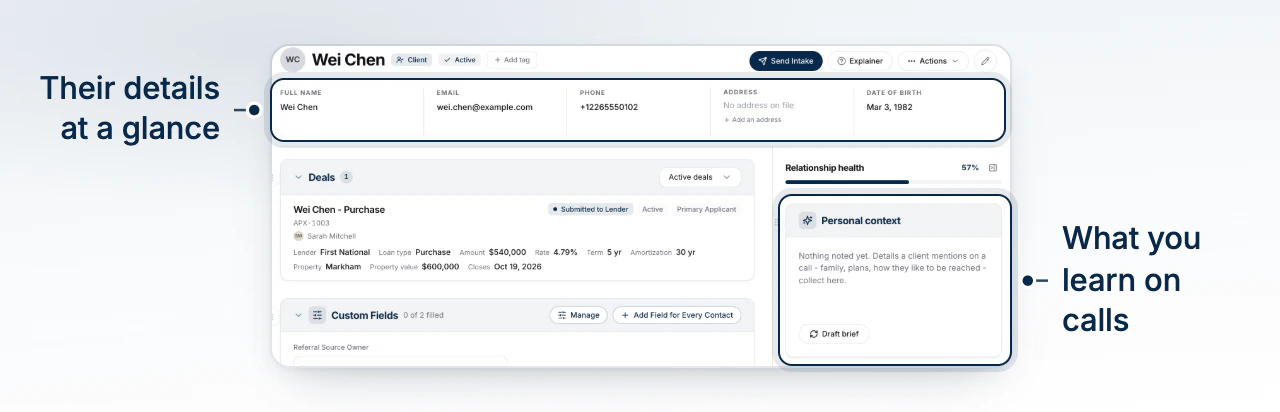
The row of facts under a contact's name, name, email, phone, date of birth, and address, reads as plain text until you click a value. Clicking turns that one cell into an input in the same spot, so the row never reflows. Press Enter or click elsewhere to save it, or press Escape to discard the edit and keep what was there. Address is the exception: clicking it opens the full editor instead of editing in place, since an address is several fields and a primary flag rather than one line.
Opening the Full Editor
Click the pencil beside the identity strip to open Edit contact. It holds a Contact Details card and an Addresses card, and carries no Save button of its own - a footer button that confirmed nothing would only invite closing the modal without your change landing. Both cards save on their own; watch the status pill in the details card's header for pending, saved, or a failed save.
Adding Extra Emails and Phone Lines
Beneath the primary email and phone in the full editor, Add another email and Add another phone add another row for a second address or line. A phone row can be flipped to a fax number with the toggle beside it. Remove any extra row with the x beside it. A row that is not yet a complete email or number is held locally and never saved as a fragment.
Managing Addresses
The Addresses card lists every address on file, with one marked primary. Add address opens a form for a new one, and addresses gathered from a funded deal appear here too once merged in. When a deal funds and the applicant occupies that property, the card offers to set it as the primary address in one click rather than asking you to retype it.
Nickname, Company and Relationship Status
The full editor also carries a nickname (shown as "aka" on the profile), a company field for a person who is not filed as a company themselves, and the relationship status - Active, Ended, or Unknown. Nickname and company save the same way as any other text field. Relationship status saves the moment you pick it from its dropdown, with nothing else to press.
Changes Save as You Type
Every text field in the full editor saves itself: it waits briefly after you stop typing, or the moment you leave the field, whichever comes first. A value the field cannot yet accept, a half-typed email, for instance, is never saved until it is valid, so a save never lands a fragment. The identity strip works the same way at the level of one field: what you clicked into is what gets saved when you commit it.
What to Do Next
Continue with Set a Contact's Type and Partner Role to record how this person fits your book, or Merge Duplicate Contacts if editing was meant to fix a duplicate.