
Use a contact profile as the working record for one person or company. It keeps identity, relationship details, communication, linked deals, notes, and automatic activity together.
Watch Mandric walk you through this topic
8:07Review the Relationship Record
The profile can show:
- contact details and addresses;
- relationship status;
- linked deals and credit information;
- referrals and partner roles;
- screenings;
- Pulse activity and linked tasks.
Use the header actions to start an email, place a call, or add a note. View-only users can inspect the record but cannot change it or start restricted actions.
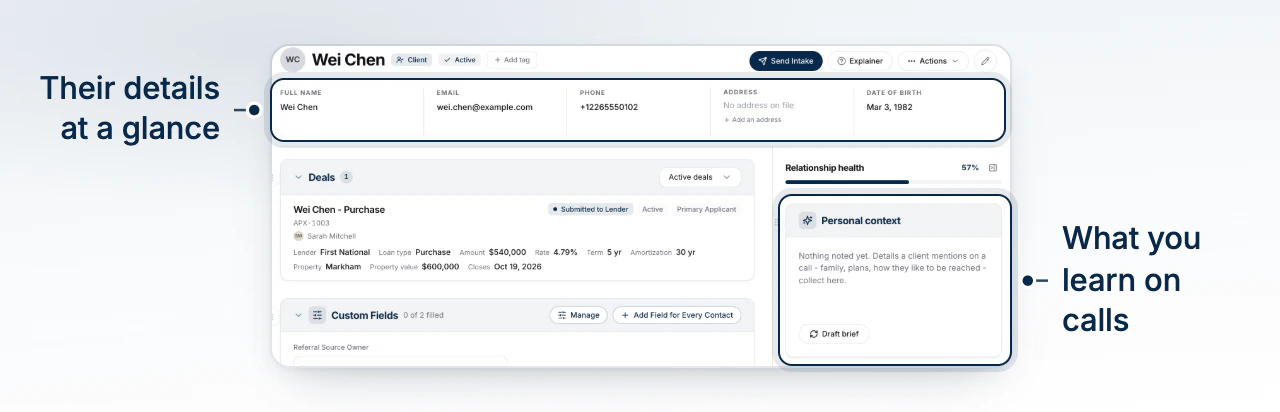
Read the Deals Section
Deals opens on Active deals: the files still in progress, plus any funded mortgage that is on your Opportunities page. Switch to All deals to see every deal the person is on, including funded and closed ones. BrokerPlus remembers your choice for the next contact.
A deal that is on your Opportunities page carries a Renewal Opportunity or Refinance Opportunity chip. Select the chip to open that opportunity; select anywhere else on the card to open the deal. A deal you removed from Opportunities, or one whose term has ended, carries no chip.
Custom Fields and Your Profile Order
Custom Fields holds your brokerage's extra information about a contact, such as who owns a referral relationship. An admin can choose Add Field for Every Contact or Manage on the record, or open Settings > Custom Fields, to define text, number, date, and dropdown fields. Definitions apply to every contact in the brokerage; brokers with write access can fill them in.
A text answer is written in a small editor rather than on one line, so it can hold a list: press Enter for a new line, Shift+Enter for a line break within one, and use the bar underneath for bold, italic, underline, and bulleted or numbered lists. It saves when you leave the box. A number or date answer saves on leaving the field or pressing Enter; Escape discards an unsaved edit. Dropdown answers save when chosen. Removing a field or an option keeps the answers already recorded, and the Custom Fields data export includes them. An archived field can be restored with its original name and type.
A field can also carry the answer it starts with. Set Starts with when you add or edit the field, and every contact added after that begins with it already filled in, whether they were typed in by hand, arrived through a lead form, or came in from a call or text. Anyone can change it on their own contact. Contacts that already exist keep the answers they have, and editing the value later changes only the contacts added from then on. Leave it empty for a field that starts blank.
Use the grips to reorder the profile blocks and, when expanded, the At a Glance rail. With the keyboard, focus a grip, press Space, move with the arrow keys, and press Space again. Your choices follow your account and do not rearrange anyone else's view. Tasks and Notes stay together.
Stop Automated Outreach
Open Actions, choose Stop Automated Outreach, then select Stop Outreach. This stops Pulse automations and follow-ups, recurring equity reports, and marketing campaigns for this contact without deleting their record.
The stop also applies to campaign recipients already scheduled to receive an email or text. A stopped co-applicant does not receive a copy of a recurring equity report, while other eligible applicants can still receive theirs. A message already handed to a delivery provider cannot be recalled.
Manual emails and texts remain available. Document reminders, intake follow-ups, signing confirmations, and surveys continue. This is not an unsubscribe and does not change the client's email preferences.
To resume, open Actions, choose Resume Automated Outreach, then select Resume Outreach. Previously skipped messages are not resent. Existing property-specific stops and the client's email preferences still apply.
A stop for one property does not stop campaigns or reports about the contact's other properties. Review the same stop list in Pulse when you need to manage individual triggers or properties.
Update Managed Details
- Edit the person's identity, contact, address, and relationship fields when information changes.
- Add or remove the manually managed Partner and Co-broker facets.
- Leave Lead and Client facets to BrokerPlus. They are derived from borrower deal history.
- Use linked deals and tasks to continue existing work instead of copying the same information into another record.
Use Notes and Activity Correctly
Notes are shared, editable records. You can create, pin, edit, and delete them when you have write access. Deleting a note removes it for everyone who can access the contact.
Activity is an automatic, read-only, newest-first timeline. It can include communications, pending drafts, material deal changes, deal links, and referrals.
Notes do not appear in Activity because they have their own editable panel.
To keep a document with a note, select the paperclip in the note box toolbar and choose one or more PDF files. Each file must be a PDF and smaller than 25 MB. The files upload when you select Add note, and a note carrying a file does not need any typed text. Select a file name to open it in a preview window, before or after the note is added; on a saved note you can download it from there. A file cannot be removed from a note on its own: delete the note and its files go with it. Deal notes work the same way.
Notes are shared
Edit or delete a note only when the shared relationship record should change for everyone with access.
What to Do Next
Continue with How Boards, Stages, and Status Fit Together.