
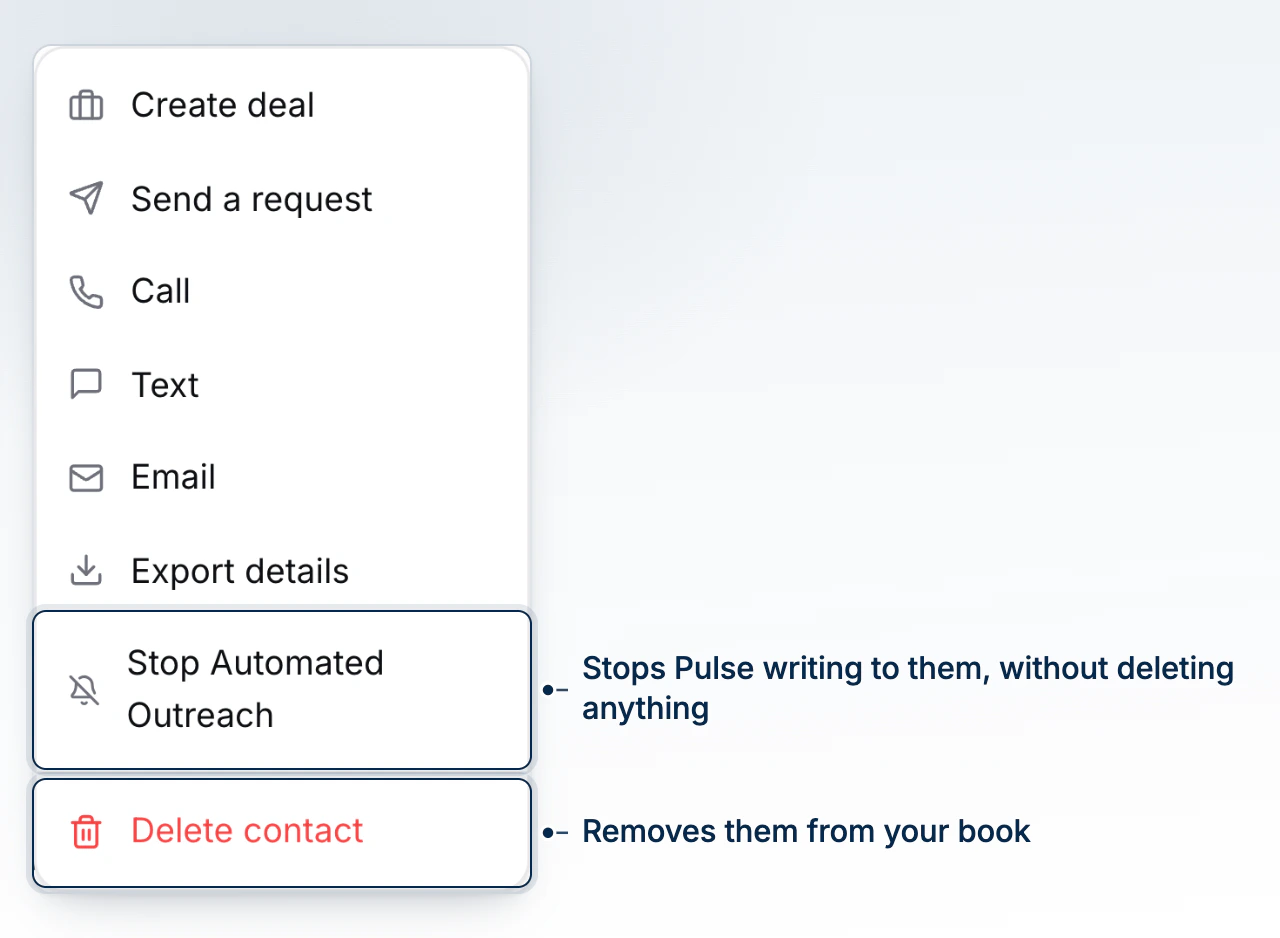
Reach a contact without leaving their profile. Open Actions on the profile header and you'll find Email, Call, and Text alongside the rest of the record's actions, each one only offered when the contact has an address or number to reach.
Emailing From the Profile
Choose Email from Actions to open the composer with the contact already filled in as the recipient. Add Cc or Bcc from the buttons beside the address field, attach files, and send from your connected mailbox. If the contact has an open deal, the composer looks for one match among the recipients and subject and attaches it automatically, so the message threads onto that deal's own record as well as the contact's.
Texting From the Profile
Choose Text to open a text composer prefilled with the contact's number. It sends through your organization's connected texting line the same way a reply on an existing thread does.
Calling From the Profile
Choose Call to place it. When in-app calling is set up and free, it dials right there without leaving the page; otherwise it hands off to your device's own phone app with the number already entered.
How the Thread Files Itself
You never manage where a message goes. Every email and text sent from here lands on the contact's Activity feed the moment it sends, and when a deal is reachably linked to this contact, the same message threads onto that deal's own communications too. A deal you picked on purpose is never silently dropped; one that was only ever inferred is dropped without complaint rather than blocking your message, since an unattributed message that goes out beats one that doesn't send at all.
Sending to a Co-Applicant as Well
Add a co-applicant on Cc when composing an email; the composer suggests the people already linked to the same deal. They're a real recipient of the send, checked the same way the primary contact is, not a silent copy.
What an Opted-Out Client Will Not Receive
BrokerPlus checks two different things before a message goes out. Suppression is a deliverability fact, a hard bounce, a spam complaint, or an address you've flagged by hand, and it blocks every send to that address no matter what you're sending, including something you type yourself from the profile. Consent is the client's own preference about commercial mail: marketing, equity reports, or all of it. A message you compose here about their own file isn't commercial, so it still reaches an address that opted out of marketing, the same way an automated reminder about their own closing date would.
Text works differently: there's one consent switch covering every text to that number, with no separate carve-out for a message about their own file. A contact who's opted out of texting won't receive a manual text from this profile either, only a call or an email will reach them.
What to Do Next
See Notes Against the Activity Timeline for how a sent message sits beside your own notes, or continue with Tour the Contact Profile and Work Your Leads.