
Your book holds every client, lead and partner you work with, so getting to one person is a matter of cutting the list down. Search finds a name; the segments and the filters panel slice the set; the address bar remembers whatever you built.
Watch Mandric walk you through this topic
8:07Searching by Name, Email, Company or Phone
The box reads Search name, email, company... and matches on first name, last name, nickname, company, email and phone. It matches inside a value, so a few letters are enough, and every word you type has to match, which means extra words narrow the result rather than widen it. A run of digits is compared digits only on both sides, so 5875551234 and 587-555 both find a number stored as +1 (587) 555-1234. Three digits is the floor.
Switching Segments
The band above the toolbar carries Everyone, Clients, Leads, Partners and Brokers, each with its count and a line of detail underneath. Click one to hold the table to that segment. Picking a segment also clears any Needs attention slice you had set.
Narrowing With the Filters Panel
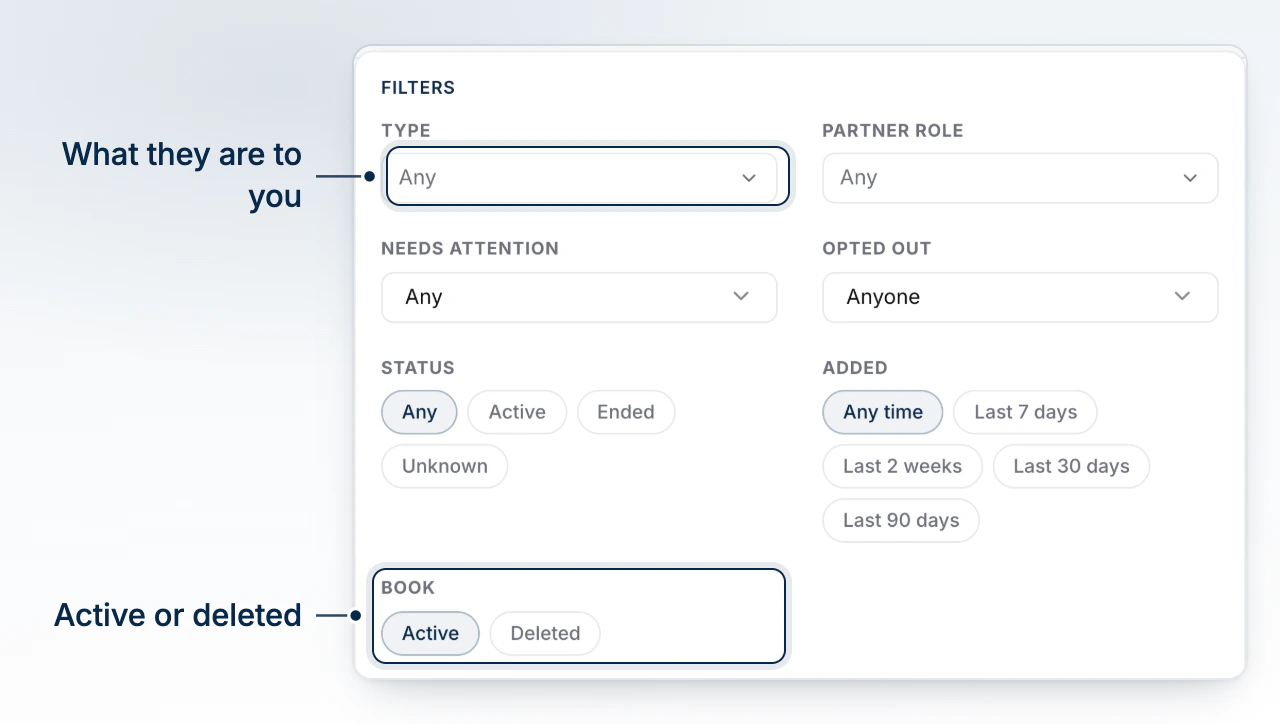
Open Filters. The badge on the button counts how many facets are active. The panel holds Type, Partner role, Tags, Needs attention, Status, Added and Book, with a count beside each option so you know what a click will leave you. Partner role and Tags appear only once your book holds one. Clear all in the panel header resets everything the panel owns.
The Deleted book
Book set to Deleted shows contacts you removed rather than filtering the live list. Deleted contacts keep their history and can be restored from there.
Finding Contacts That Need Attention
Needs attention offers Follow-up past due, No owner, Missing a phone, Untouched 6 months and No follow-up set. Each one counts off the whole book, so the number beside the option is the number of rows you get. Untouched 6 months covers clients with nothing scheduled, and No follow-up set covers partners and brokers with no next step booked.
Sorting and Paging the Table
Contact, Deals and Last touch sort when you click them, and clicking the active one flips the direction. The table opens on Last touch, newest first, and pages 25 rows at a time. The line under the table states the range, the total and, when filters cut the set, how many you started from.
Sharing a View by Link
Every search term and facet is written into the address bar as you work, so copying the link and sending it reproduces exactly what you are looking at. Opening that link loads the view already applied.