
Board Settings is where you shape the columns a board is built from: what each stage is called, its colour, what it means, and which behaviours it carries. Every board you run, from the default pipeline to a renewals-only board, is edited the same way.
Watch Mandric walk you through this topic
8:13When You'd Use This
Open it any time your pipeline stops matching how you work a file: a new step you want tracked on its own, a stage that needs a clearer name, or a column that should stop counting toward renewals. You'll also land here right after building a new board, since it still needs stages shaped.
Shaping A Stage
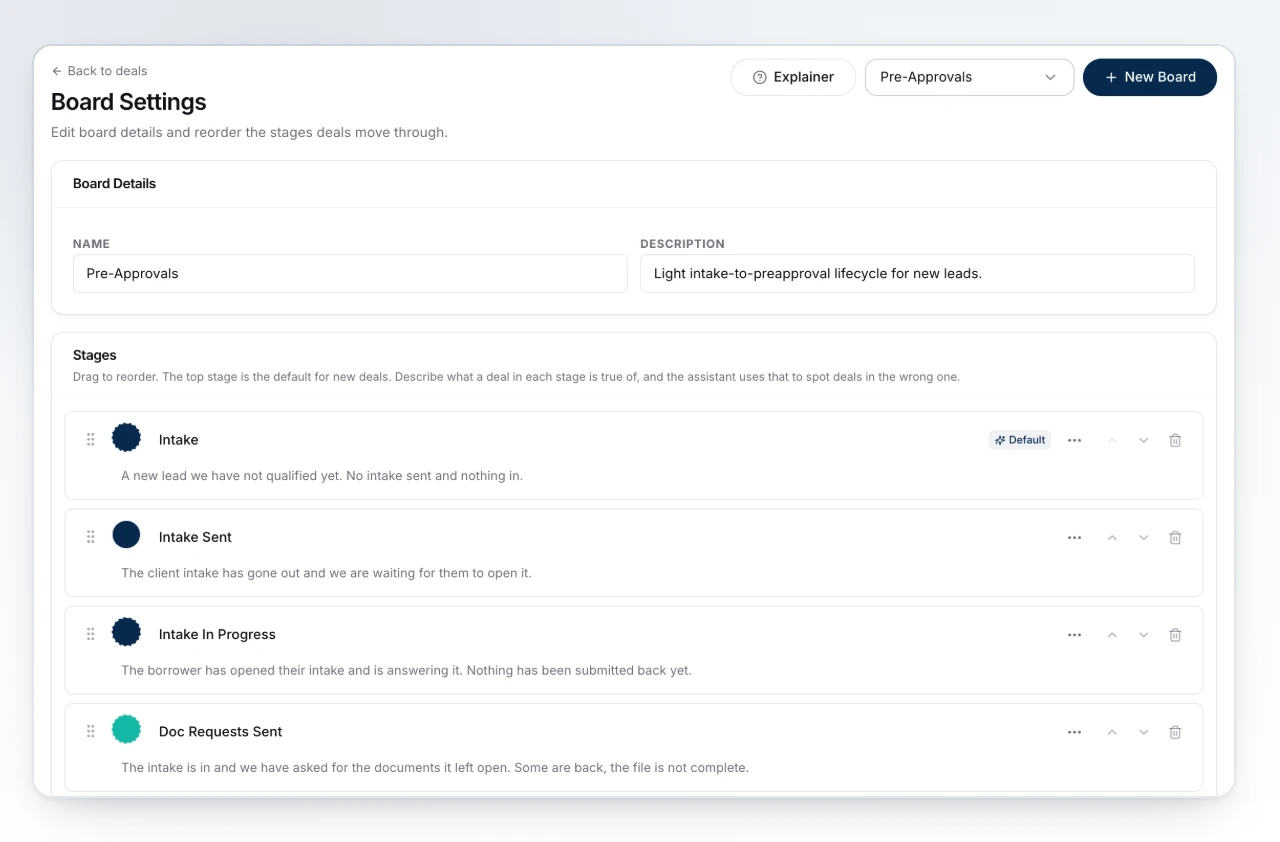
From a board, open Board settings. It opens on one board, picked from the header, and the Stages card below lists that board's columns in order.
- Press Add stage to append a new column, named "New stage" until you rename it.
- Click directly into a stage's name to rename it in place.
- Drag a stage by its handle, or use the row's up/down arrows, to change where it sits.
- Click the colour swatch on a row to open the palette. A dashed outline means the stage wears the board's default colour for that position; pick a swatch, mix your own, or reset to default.
Under a stage's name is a one-line description field for what's true of a deal once it's there, such as "Conditions are in and we're waiting on the lender." Your assistant reads that description to judge whether a deal belongs in the stage it's sitting in, so a clear one makes the check useful rather than generic. Changes save on their own.
The top stage is where a new deal lands unless told otherwise, marked with a small "Default" badge - drag a stage to the top to make it the new landing spot. To remove a stage, press the trash icon on its row; if deals are sitting in it, move them to another column first.
What The Stage Options Do
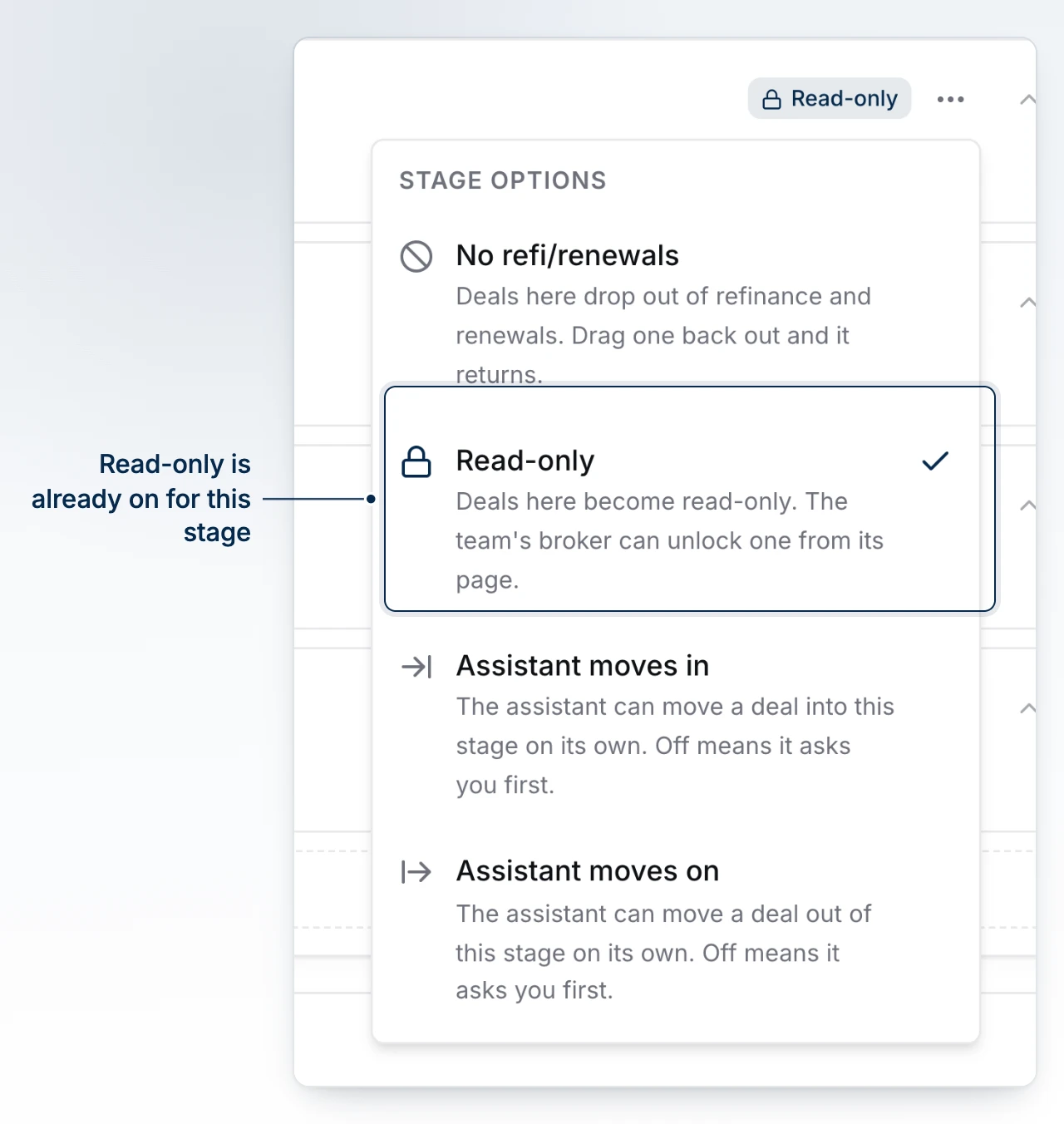
Each stage row carries a menu of on/off behaviours, reached from the Stage options button at the end of the row. A stage only shows the ones turned on.
| Option | What it does |
|---|---|
| No refi/renewals | Deals in this stage drop out of your refinance and renewals lists. Drag one out and it returns. |
| Read-only | Deals here become locked. See Make A Stage Read-Only for how brokers unlock one. |
| Assistant moves in | The assistant may move a deal into this stage on its own. |
| Assistant moves on | The assistant may move a deal out of this stage on its own. |
Two different switches, don't mix them up
"Assistant moves in" and "Assistant moves on" are per-stage settings that control which specific stages the assistant can shuffle a deal between. They're separate from the org-wide "let BrokerPlus suggest stage moves" toggle covered in Let BrokerPlus Suggest Stage Moves, which controls whether the assistant proposes moves at all.
Common Gotchas
Turning on both "Assistant moves in" on a later stage and "Assistant moves on" on the stage before it means a deal can hop between them with nobody touching it. The editor notes this between the two rows so it's never a surprise - leave one flag off if you only meant to review suggestions.
A blank stage description is one less signal your assistant has for catching a deal drifted into the wrong column.
What to Do Next
- Set Requirements On A Stage to stop a deal entering a stage until it's ready.
- Make A Stage Read-Only to lock a file once it reaches a certain point.
- Let BrokerPlus Suggest Stage Moves to turn on the org-wide switch these per-stage flags depend on.