
The board is where a deal lives day to day: drag it into the next stage, drag it onto another pipeline entirely, or open it for a quick look without leaving the page you're on.
Switching Boards and Reordering the Tabs
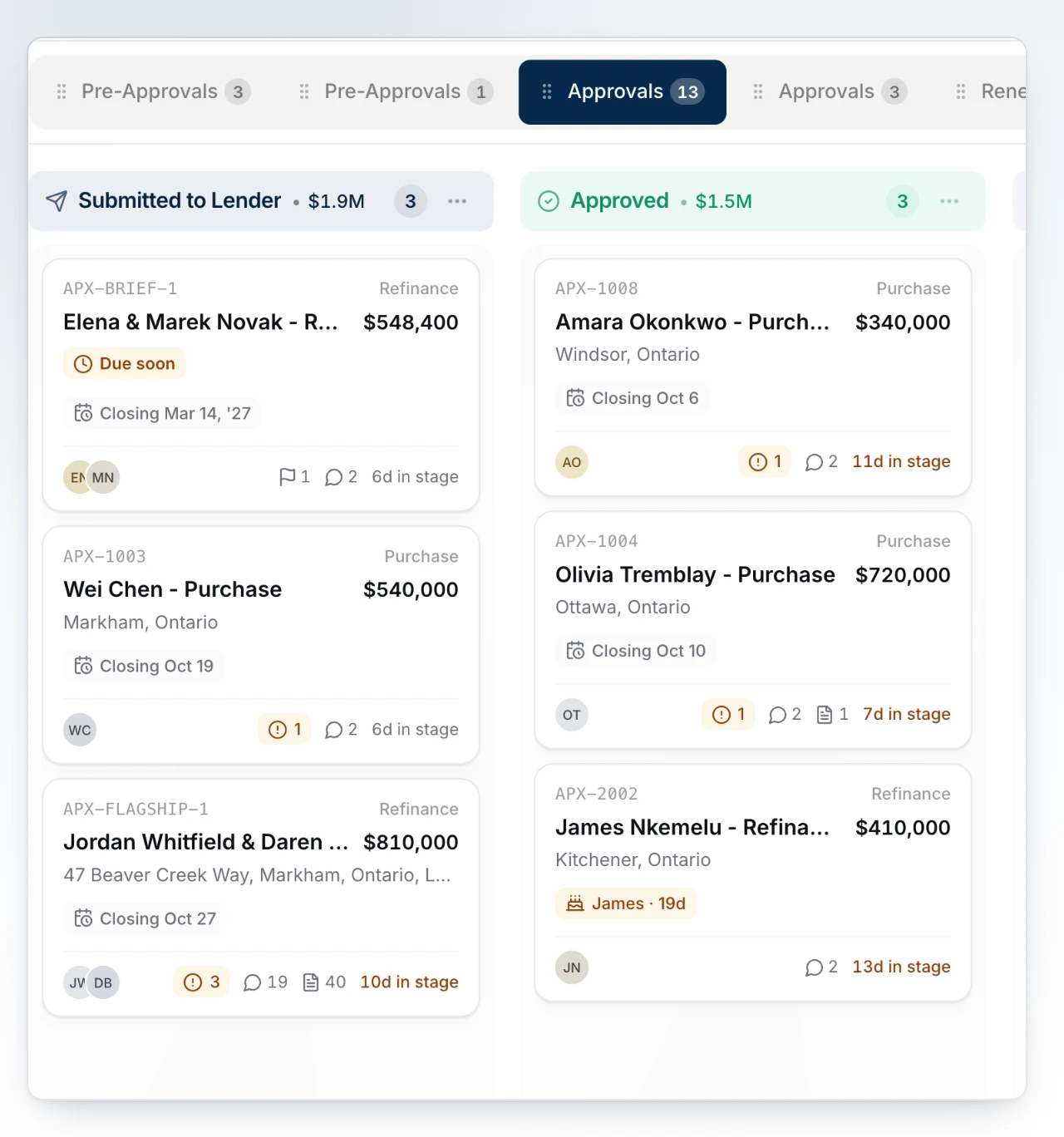
Every pipeline you've set up gets its own tab across the top of the board. Click a tab to switch to it, and drag one by its handle to put your pipelines in the order you actually work them - the order is saved for everyone on your team. Each tab's badge counts the deals on it, narrowed by whatever filters are active.
Board View, List View, and Card Density
The Board, List and Advanced switch lives in the more options menu at the top right. Board is the kanban you drag cards on; List is a sortable table over the same deals; Advanced is the full grid for closing-year bookkeeping. Which one you pick is remembered per board, so leads can stay a kanban while renewals stays a list. Card density - Comfortable or Compact - is a separate setting in the same menu and applies to every board.
Dragging a Deal to Another Stage
Pick up a card and drop it in another column on the same board. If the stage you're dropping into requires information the deal doesn't have yet, a panel opens naming what's missing before the move completes - see Set Requirements on a Stage. Pulling a card backwards is never checked; only a forward move can be refused.
Dropping a Deal on Another Board
Drag a card - or a whole selection - onto another board's tab to move it there. Rest on the tab for a moment and that board opens under your drag, so you can drop the card straight into the column you want instead of landing it on the first stage. Letting go without dropping still leaves you on the board you opened, which is a quick way to navigate as well as to file.
Opening a Deal at a Glance
Click a card or a list row and a panel opens anchored beside it, with tabs for Details, Activity and Notes. Nothing reloads: the panel renders instantly from what's already on the board, then fills in ratios and the latest lender response a moment later. Closing it returns you to exactly where you were.
What Runs When a Deal Enters a Stage
A stage move fires whatever that column triggers - a task filed, a draft prepared in Pulse for your review. A toast names what's running as it starts. If your account is in Test Mode, the toast says so instead, and nothing actually goes out on a real deal. The requirements a stage checks before it accepts a card are set up separately; see Set Requirements on a Stage to configure what each column demands.
What to Do Next
- How Boards, Stages and Status Fit Together to understand what a stage move does and doesn't change on a deal.
- Select and Update Several Deals at Once to move, duplicate or archive a batch of cards in one action.
- Find a Deal With Search and Filters when the deal you want isn't on the board in front of you.