
Some stages exist to hold a finished record, not more work. Flag one as read-only and every deal that lands there stops accepting edits - useful for a funded mortgage or an imported record you want to keep exactly as it arrived.
Watch Mandric walk you through this topic
8:13When a Read-Only Stage Makes Sense
The seeded Historical Deals board's Funded column already ships this way: an imported mortgage there is a record of what the file was at import, not a live application, so it stays locked until a broker deliberately unlocks it. The same reasoning holds anywhere a stage marks a file as done - restating it by accident is the thing you are guarding against.
Turning the Option On
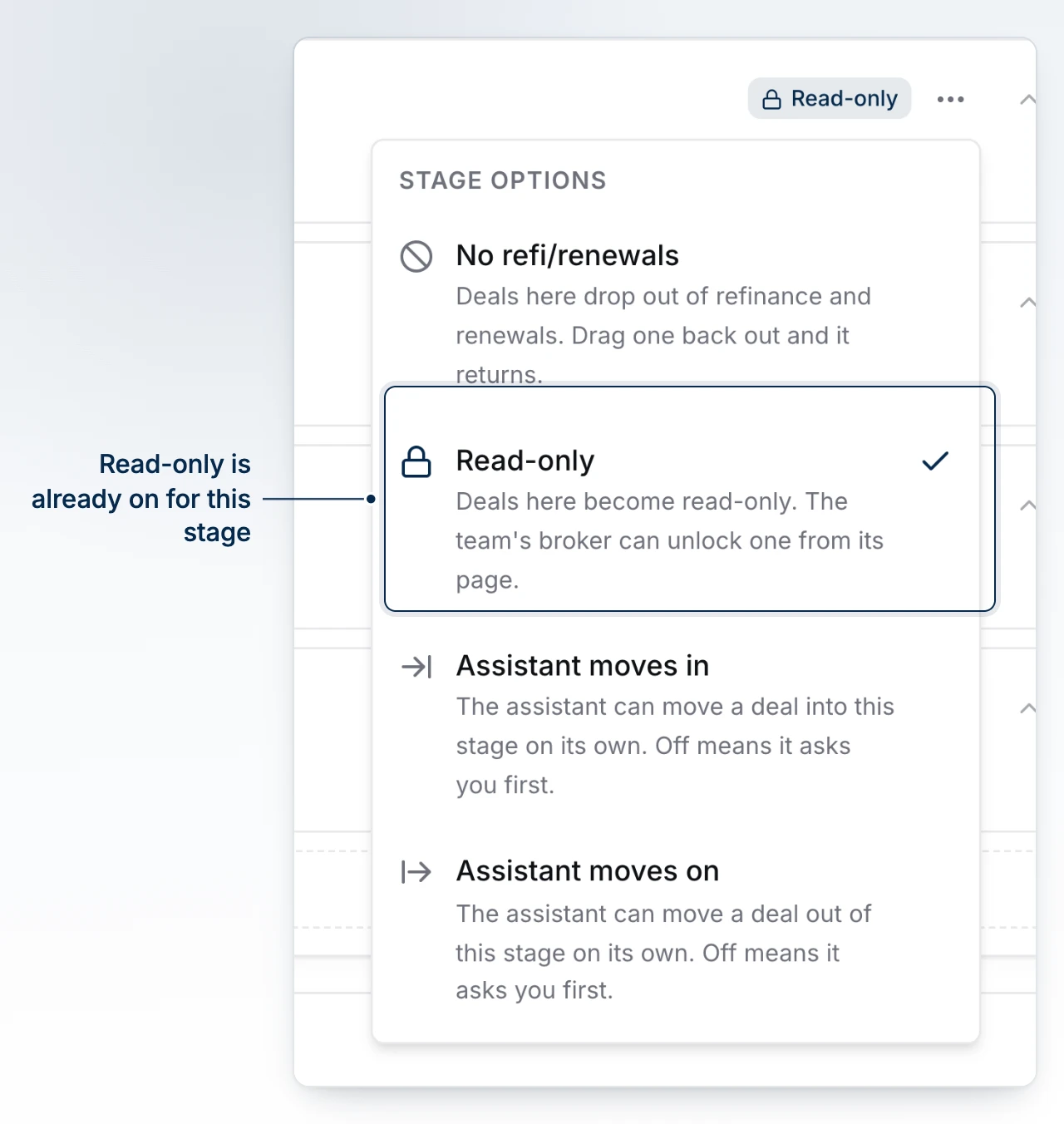
Open a board's stages from Board Settings, find the stage in the list, and open its options menu (the ... at the end of the row). Turn on Read-only and save. The lock is not a property BrokerPlus stamps onto a deal - it is read off the stage a deal currently sits in, so dragging a card out of that column makes it editable again with nothing to undo.
What a Locked Deal Looks Like
A locked deal shows a red Read-only chip beside its stage on the deal page, and its refinance, renewals and leads views read-only along with it. The deal's editors close for editing while the chip is up, so there is nowhere on the page that quietly still accepts a change the chip says is refused.
Who Can Unlock a Deal
Only the broker who owns the deal's team can lift the lock, and only from the deal's own page - the chip there doubles as the control. Everyone else, including a principal broker reading a peer team's file from the brokerage level, sees the same chip with no toggle. Unlocking is scoped to that one deal: the stage stays flagged for every other file sitting in it.
Locking It Again
Press the chip a second time to put the lock back without moving the deal anywhere. An unlock is also temporary on its own terms - it is measured against when the deal entered the stage, so if the deal ever leaves the column and comes back, the stage re-locks it on re-entry without anyone having to press anything.
What to Do Next
- Customize a Board's Stages to add or reorder the columns a lock can sit on.
- Tour the Deal Record to see what else lives on a deal's own page.
- Set Rules Per Deal Type to see another rule a stage can carry alongside a lock.