
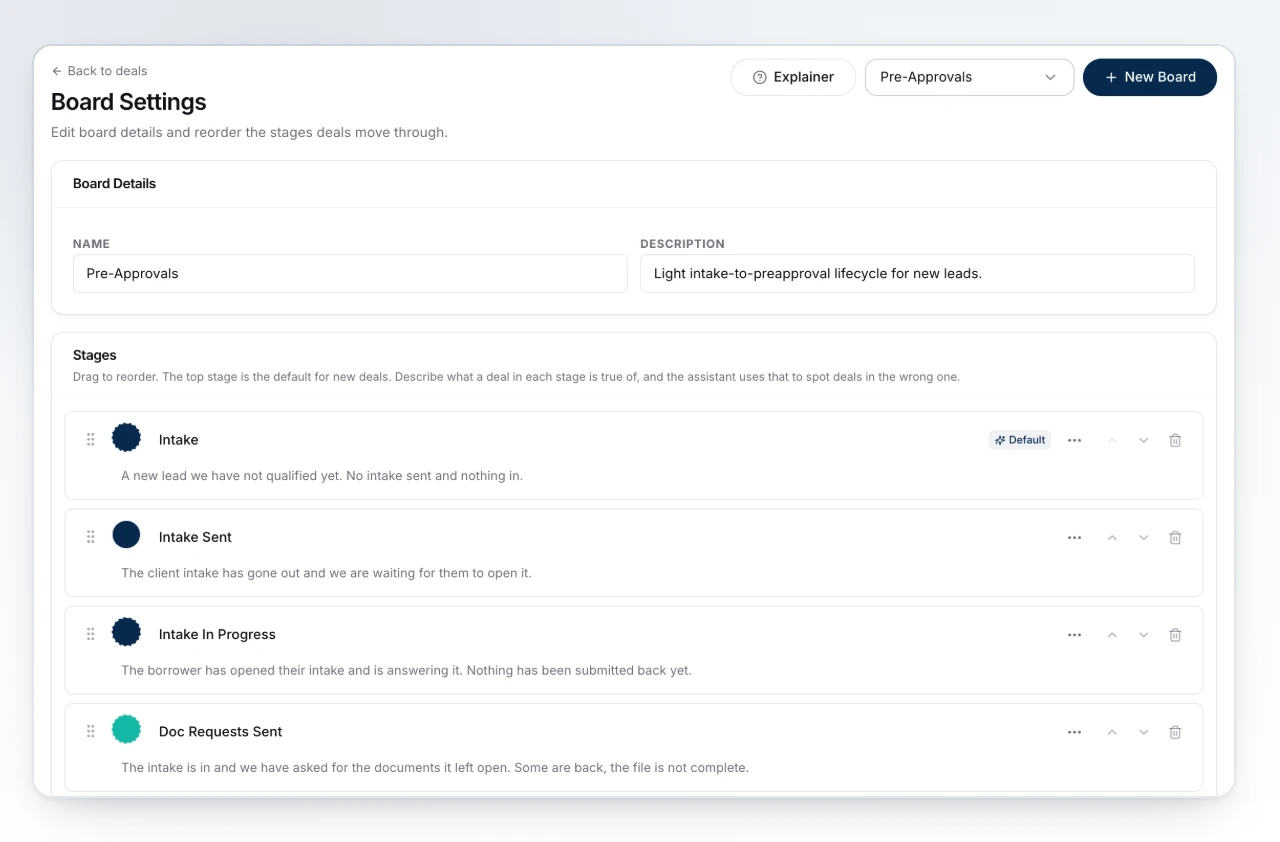
A new team opens on five boards already built, each one a pipeline for a family of deal types rather than a blank grid you have to design yourself. Board Settings shows one board at a time, chosen from the picker in its header, with that board's stages listed in order below. It is where you look over what you were given, add another board when five pipelines are not enough, and retire one your team does not use.
Watch Mandric walk you through this topic
8:13The Five Boards You Start With
Pre-Approvals runs a light intake-to-preapproval path for new leads, and takes purchase and pre-approval deals. Approvals is the full mortgage lifecycle from application to funded, and takes purchases, both kinds of refinance, and HELOCs. Renewals splits into a same-lender quick path and a switch-lender retread. Reverse Mortgages runs its own specialty flow, with HomeEquity Bank and Equitable named up front. Historical Deals holds funded, closed, and historical deals pulled in from your book of business - it is not a working pipeline, so nothing new lands there on its own.
What the Name and Description Are For
Rename a board or rewrite its description from the Board Details card, and both save as you type. The description is not just a label: describe what a deal in a stage is actually true of, and the assistant uses that wording to catch a deal that looks parked in the wrong column.
Adding a Board From a Template
Press New Board and BrokerPlus offers Commercial, Private & Alternative, Construction & Draws, and Refinances as ready-made templates, each with its own stage list built for that kind of deal. A template already on your board list, by key or by name, is not offered twice. Pick one to prefill the name and description, or leave the gallery alone and start from a blank board instead - either way you land on the new board's own settings page as soon as it is created.
Deleting a Board You Do Not Use
Press Delete Board in the danger zone at the bottom of a board's settings. Before anything changes, a confirmation tells you how many deals are on the board, because every one of them moves to your archived deals along with it. Restore any of them from the archive and it lands on one of your other boards, preferring the stage it left when the other board has a matching stage. Open tasks and scheduled messages on those deals are cancelled and do not come back. BrokerPlus refuses to delete your last board - a broker needs somewhere for a new deal to land, so the button is disabled with a note explaining why until you have at least two.
The board step during setup asks for the same confirmation, including how many imported deals will be archived. Cancel leaves the board and its deals unchanged.
Adding a Deleted Board Back
A board made from a template goes back into the New Board gallery the moment you delete it. Pick it again and the board returns with the stages it had, empty until you restore its deals from the archive.
What to Do Next
- How Boards, Stages and Status Fit Together to see how a board's columns drive what a deal's status is.
- Customize a Board's Stages to rename, reorder, or add columns on a board you already have.
- Set Requirements on a Stage to require fields before a deal can enter a column.